


Grant, change or remove an access
Give an employee an access profile, change who it applies to, and take it away again.
Before you start
You need:
- Access to My Team (the people icon in the side menu)
- The right to edit employees of your units
- The right to manage accesses
- An employee in one of your units
New to the app? Start with Sign in to the web app.
When to use it
When an employee needs more or fewer rights in MyTimePlan.
Step by step
-
Step 1: Open User accesses
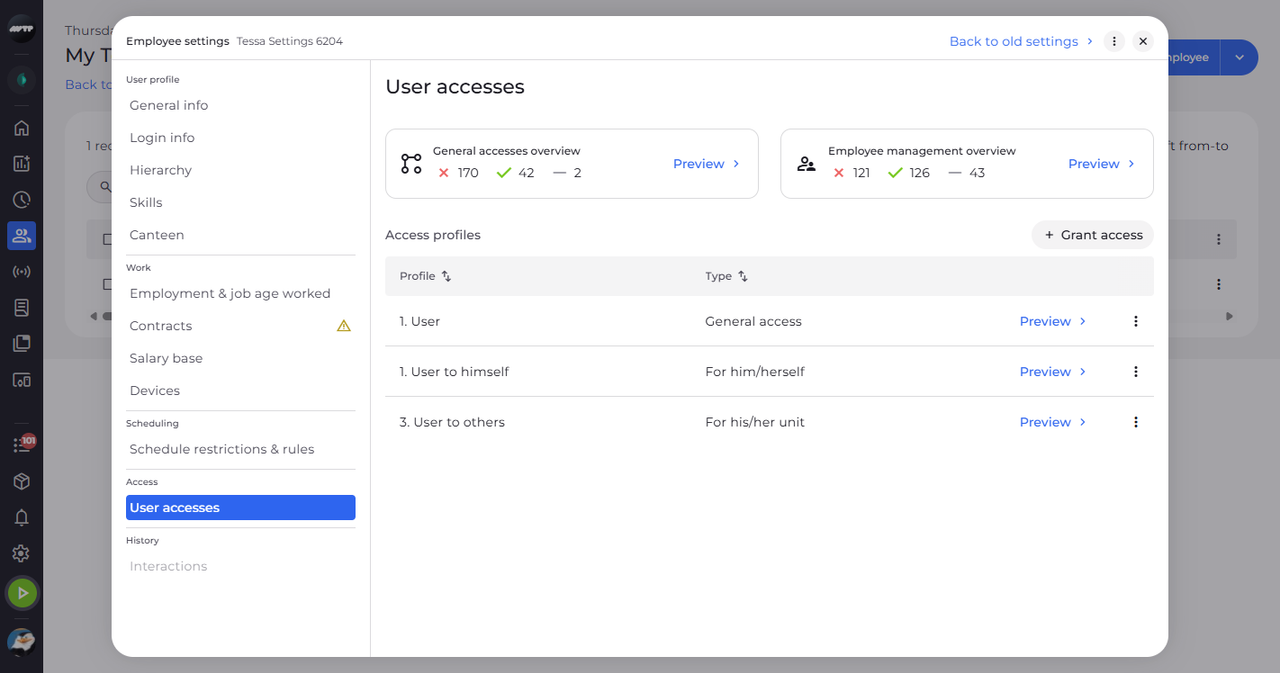
In My Team, click the employee's ⋮ button and choose Edit employee. Then click User accesses on the left. Two cards at the top sum up the employee's rights, and Access profiles lists their profiles with their Type.
Tip: Preview on a card shows the employee's combined rights; Preview on a row shows that profile's rights.
-
Step 2: Grant an access
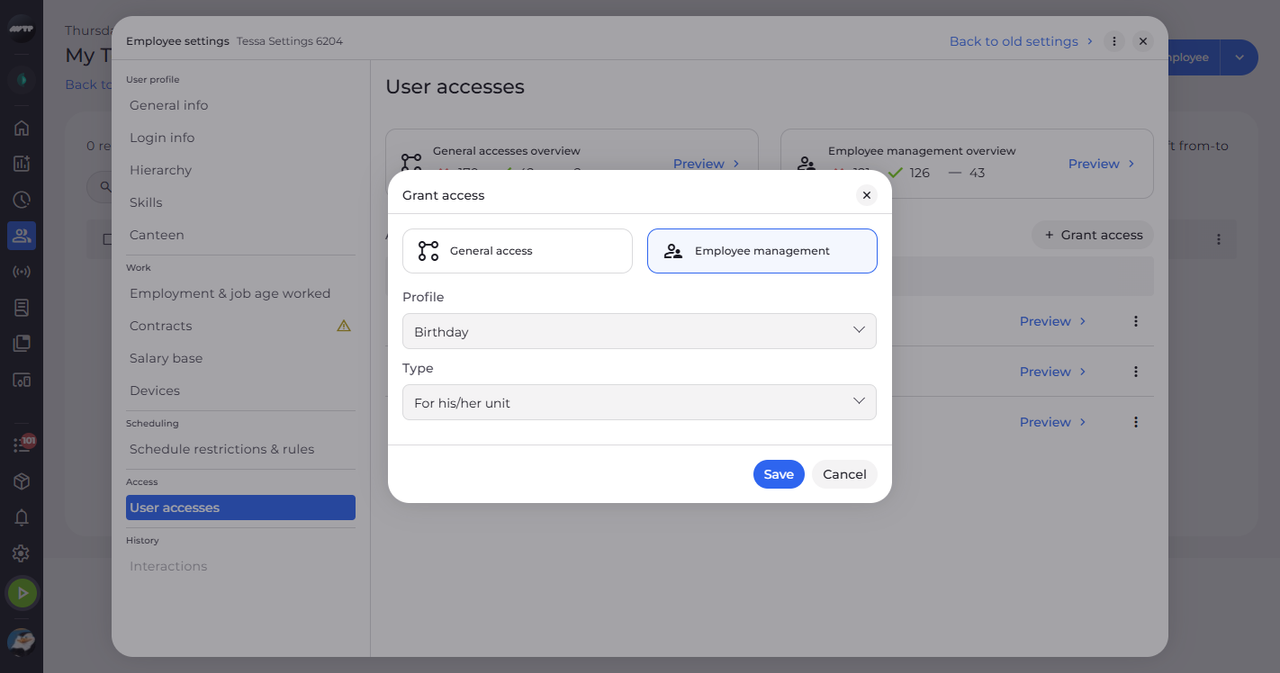
Click Grant access. Choose General access or Employee management at the top, then the profile in Profile and, for Employee management, who it applies to in Type.
Tip: Type is "For him/herself", "For his/her unit" or "For employees" - with "For employees" you also pick the people.
Tip: Only profiles this employee may be given are offered.
-
Step 3: Check the new access
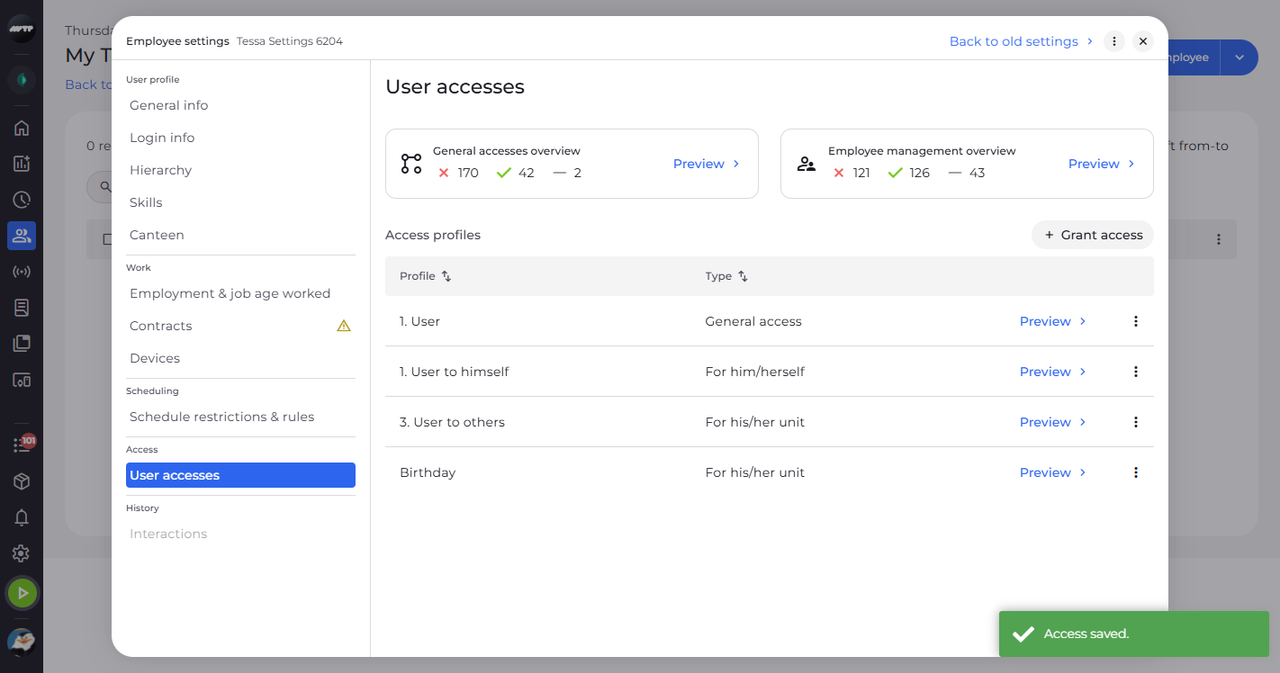
Click Save. The profile appears under Access profiles and a message confirms "Access saved."
-
Step 4: Edit an access
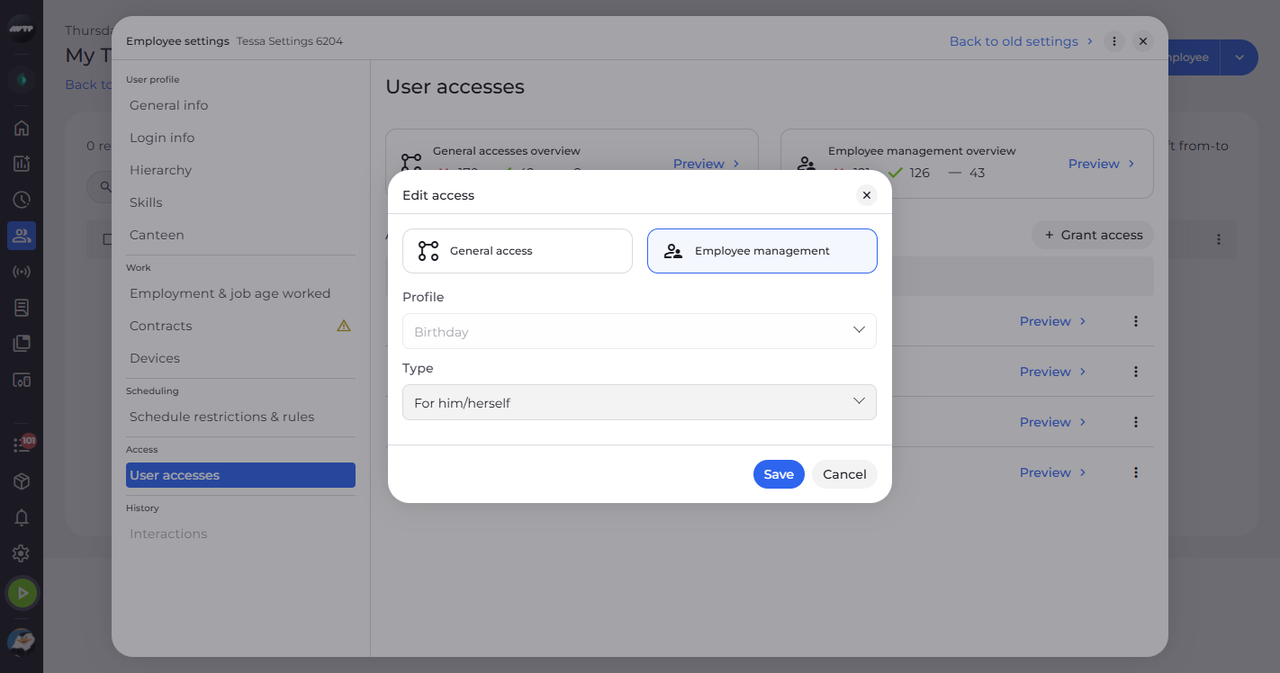
To change a profile, click the ⋮ button at the end of its row and choose Edit. In Edit access, choose another Type and click Save.
Tip: The category and the profile cannot be changed - only Type and its employees.
-
Step 5: Delete an access
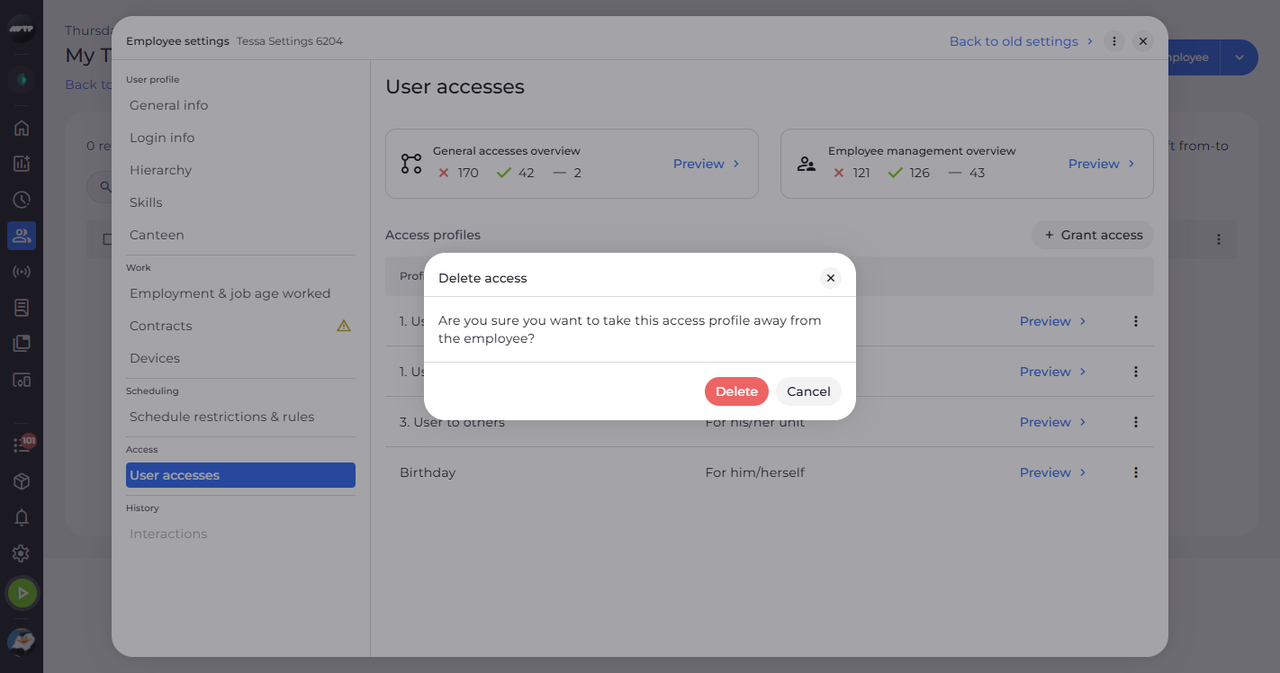
To take a profile away, click the ⋮ button at the end of its row and choose Delete. Delete access asks whether you want to take the access profile away from the employee.
Tip: Confirm with Delete; the settings confirm "Access deleted."
What happens next
The employee's accesses are up to date. After Delete, the profile is gone from Access profiles.
Good to know
- With no profiles, the table shows "No access profiles yet".
Questions
Why is my access refused?
You cannot give rights you do not have yourself ("You cannot grant accesses you do not have yourself."), and a profile the employee already has is refused with "The employee already has this access profile."
Why is Save greyed out?
With "For employees" you must pick at least one person under Employees.