


Assign several skills at once
Give an employee several skills at once.
Before you start
You need:
- Access to My Team (the people icon in the side menu)
- The right to edit employees of your units
- An employee in one of your units
New to the app? Start with Sign in to the web app.
When to use it
When a new employee comes with several skills.
Step by step
-
Step 1: Pick several skills
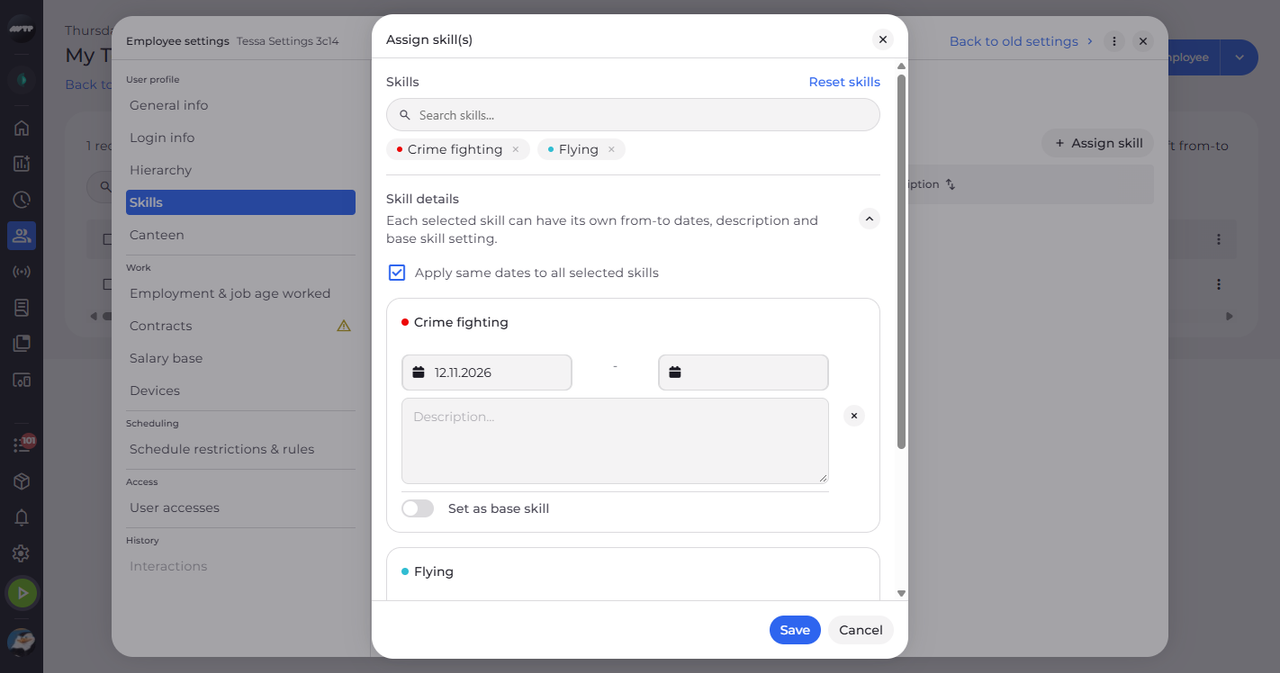
In My Team, click the employee's ⋮ button and choose Edit employee. Then click Skills on the left and click Assign skill. Search for each skill and click it - each one gets its own card under Skill details. Tick Apply same dates to all selected skills to give them the same dates.
Tip: Apply same dates to all selected skills keeps the dates equal on every card.
Tip: Select all picks every skill that is offered; Reset skills clears the choice.
-
Step 2: Check the new skills
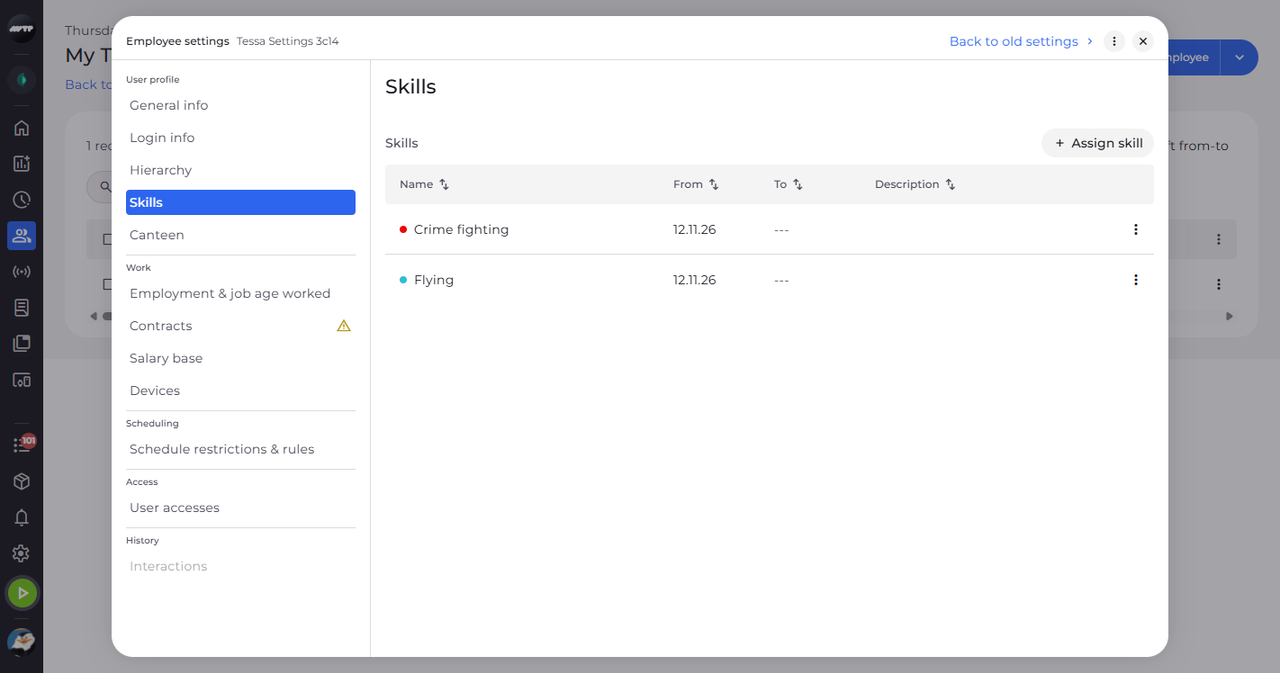
Click Save. The dialog closes and all the skills are listed.
Tip: All the skills are saved together - all of them or none.
What happens next
The employee has all the skills you picked.
Good to know
- Each card can have its own description and dates when the checkbox is off. Only one skill can be the base skill.