


See the breakdowns and set a starting balance
See how an employee's total employment adds up month by month, and add time they worked before they joined.
Before you start
You need:
- Access to My Team (the people icon in the side menu)
- The right to edit employees of your units
- An employee in one of your units
New to the app? Start with Sign in to the web app.
When to use it
When an employee brings years of service from before they started in MyTimePlan.
Step by step
-
Step 1: Show the breakdowns
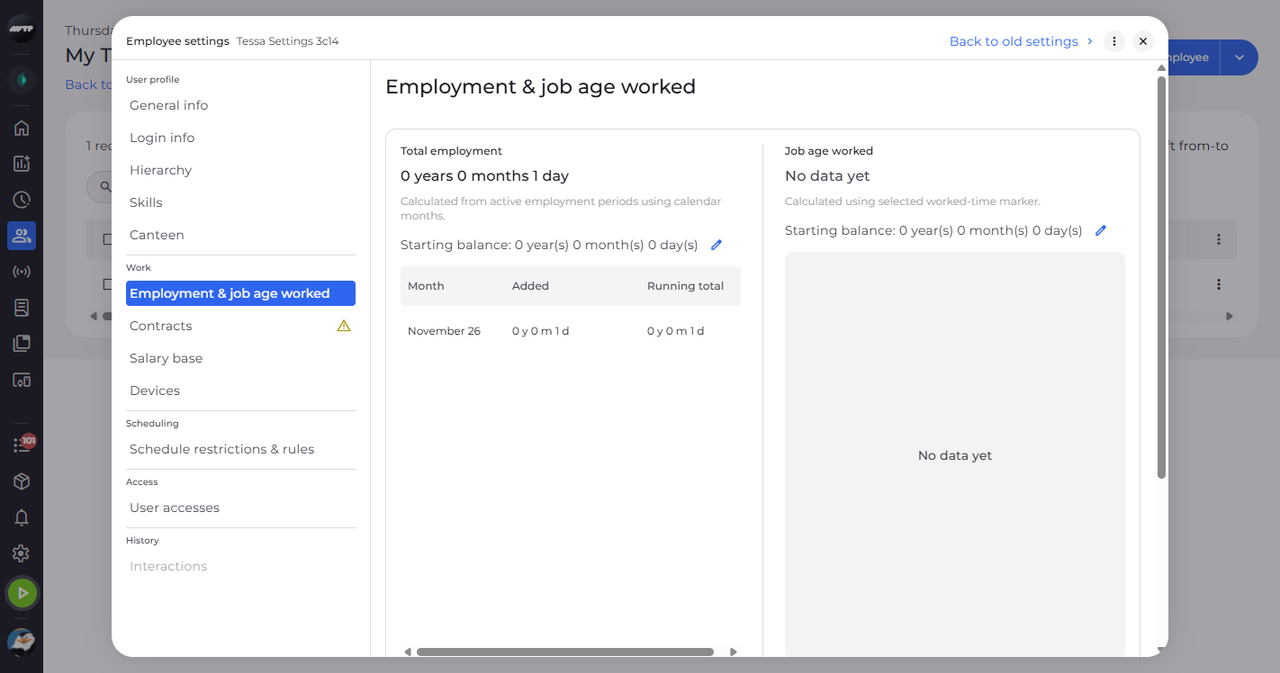
In My Team, click the employee's ⋮ button and choose Edit employee. Then click Employment & job age worked on the left and click Show breakdowns. A month-by-month table opens under each total.
Tip: The table shows each Month, what it Added and the Running total. A month with no employment is marked "No employment!".
-
Step 2: Set the starting balance
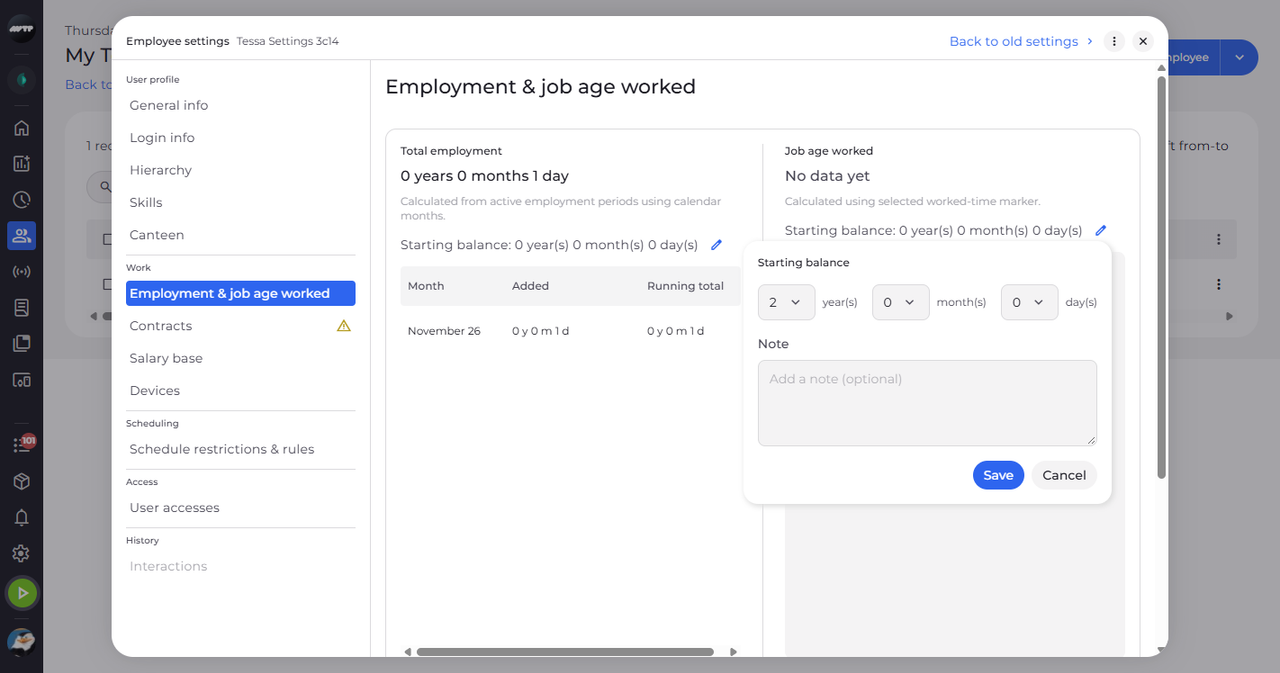
Click the pencil next to Starting balance. Pick the years, months and days in the panel, add a note if you like, and click Save.
Tip: Pick up to 50 year(s), 11 month(s) and 30 day(s). The Note is optional.
-
Step 3: Check the starting balance
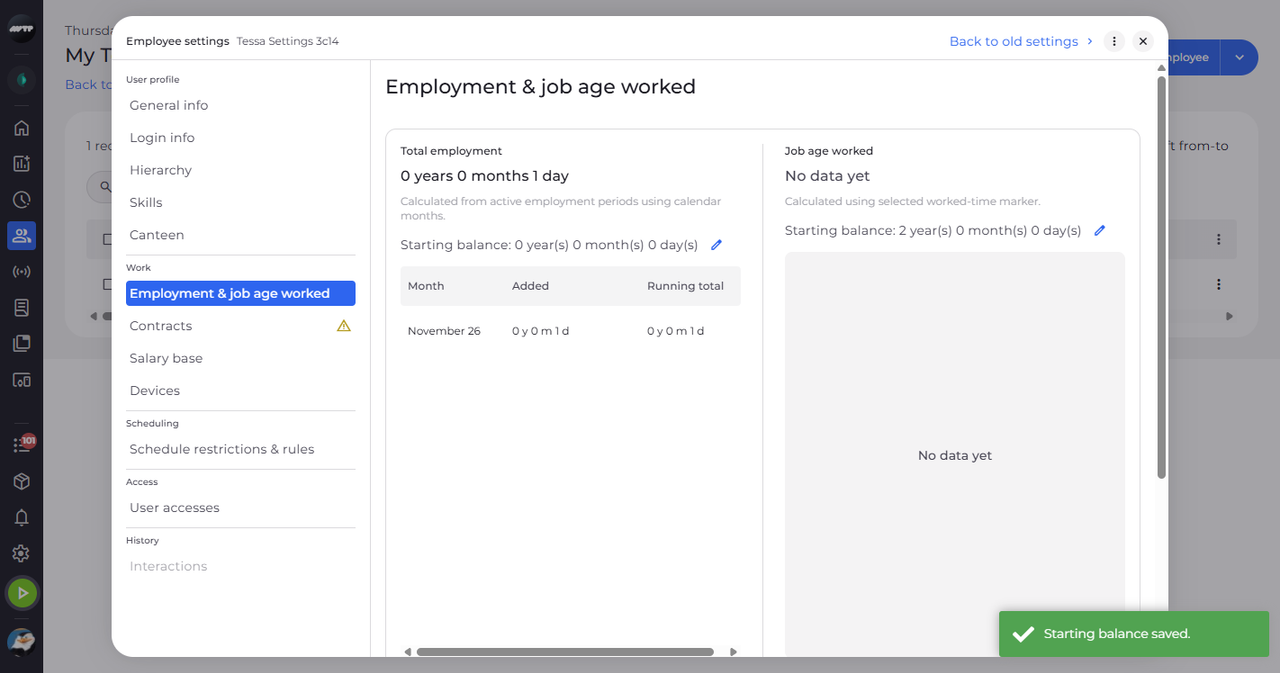
A message confirms "Starting balance saved." and the line next to the pencil shows the new balance.
What happens next
The employee's starting balance is counted in their totals.
Good to know
- The starting balance counts from the start of the first employment.
- To remove a starting balance, set it back to 0 and click Save - the settings confirm "Starting balance removed.".
Questions
Why is Save greyed out?
You typed a note but the balance is still 0 - a note needs a balance.