


Open Employee settings
Employee settings is one window with everything about one employee: personal data, login, units, skills, contracts, planning rules and accesses. You open it from My Team.
Before you start
You need:
- Access to My Team (the people icon in the side menu)
- The right to edit employees of your units
- An employee in one of your units
New to the app? Start with Sign in to the web app.
When to use it
When you need to look up or change anything about one of your employees.
Step by step
-
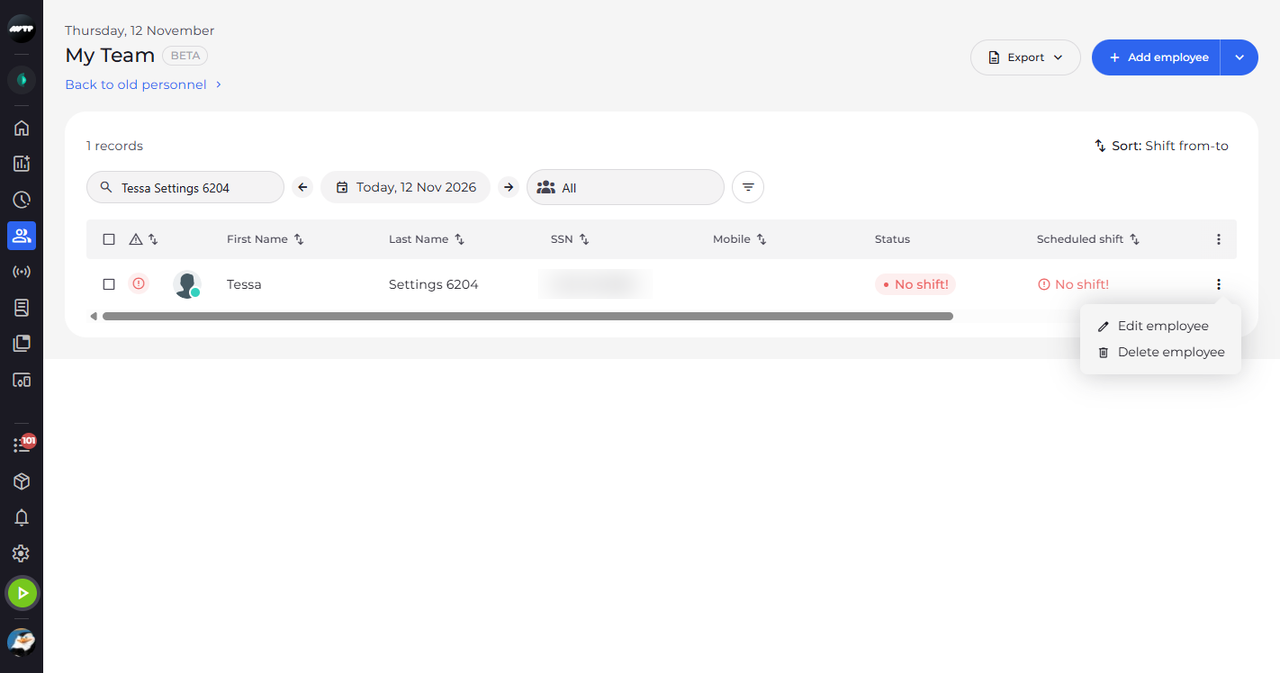
Step 1: Open the employee's ⋮ menu
Open My Team and find the employee, for example with the search box. Click the ⋮ button at the end of their row. A small menu opens with Edit employee.
Tip: To open the settings, go to My Team, open the employee's ⋮ menu and choose Edit employee.
-
Step 2: Find your way around Employee settings
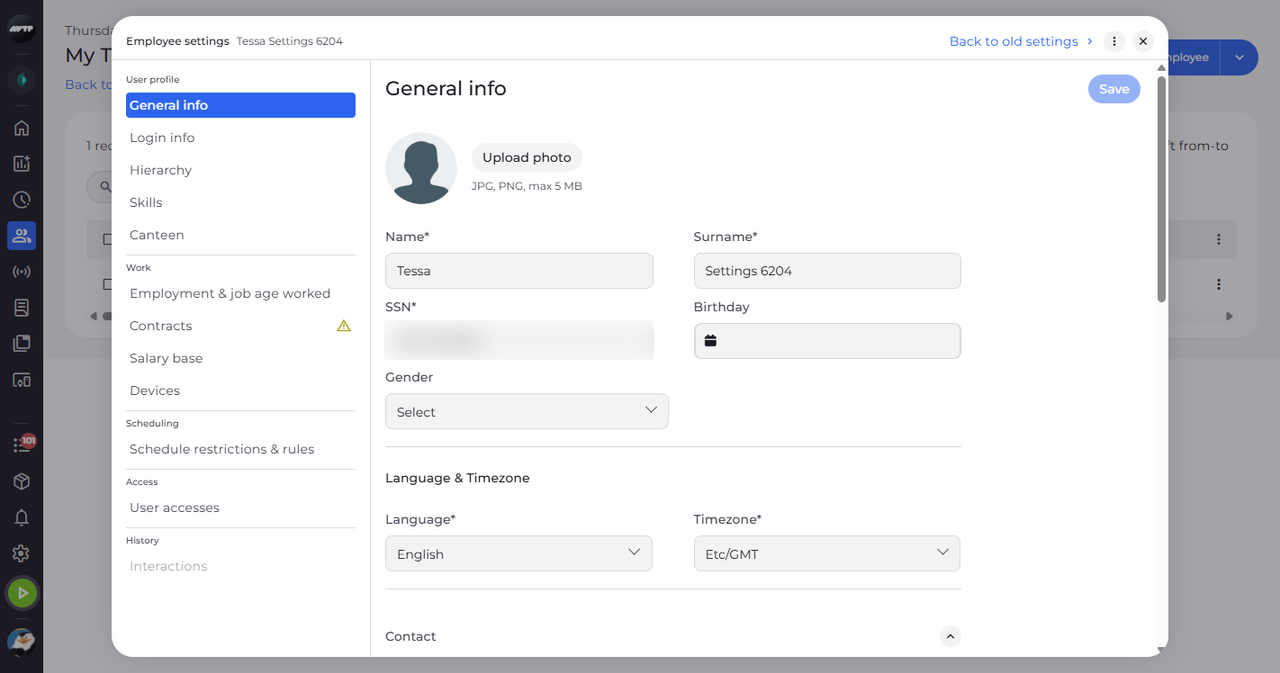
Click Edit employee. Employee settings opens over My Team with the employee's name next to the title. The sections are listed on the left, and General info opens first.
Tip: The menu on the left has five groups: User profile, Work, Scheduling, Access and History. You only see the sections your access lets you see; General info is always there.
Tip: Save saves only the section that is open.
What happens next
Click a section on the left to see or change it. Click X at the top right to close the settings and return to My Team.
Good to know
- The row menu shows Delete employee only when you may delete this employee and nothing linked to them prevents it.
- Back to old settings, at the top right, opens the classic employee editor of the same employee in a new browser tab.
- You can switch between sections without losing what you typed. If you close the settings with unsaved changes, they ask "You have changes that haven't been saved yet. If you close the settings now, they will be lost. Are you sure you want to close?" - choose Keep editing to go back or Close without saving.
- If a section cannot be loaded, it says so and offers Try again.
Questions
Why is Interactions greyed out?
Interactions is not available in the new settings yet ("Not supported yet"). Use Back to old settings for it.
What does the warning icon next to a section mean?
Something the employee needs is missing there - for example a current employment, a contract for one of their units or a valid base unit. The icon goes away once you save the missing data.
Why can't I change anything in a section?
You can see the section but not edit it: the fields are read-only, the add and ⋮ buttons are hidden, and Save stays disabled with "You do not have access to edit this section". Ask your administrator for the right.