


Grant an access for chosen employees
Give an employee an employee management profile for the people you choose.
Before you start
You need:
- Access to My Team (the people icon in the side menu)
- The right to edit employees of your units
- The right to manage accesses
- An employee in one of your units
New to the app? Start with Sign in to the web app.
When to use it
When an employee should manage some colleagues but not the whole unit.
Step by step
-
Step 1: Choose the employees
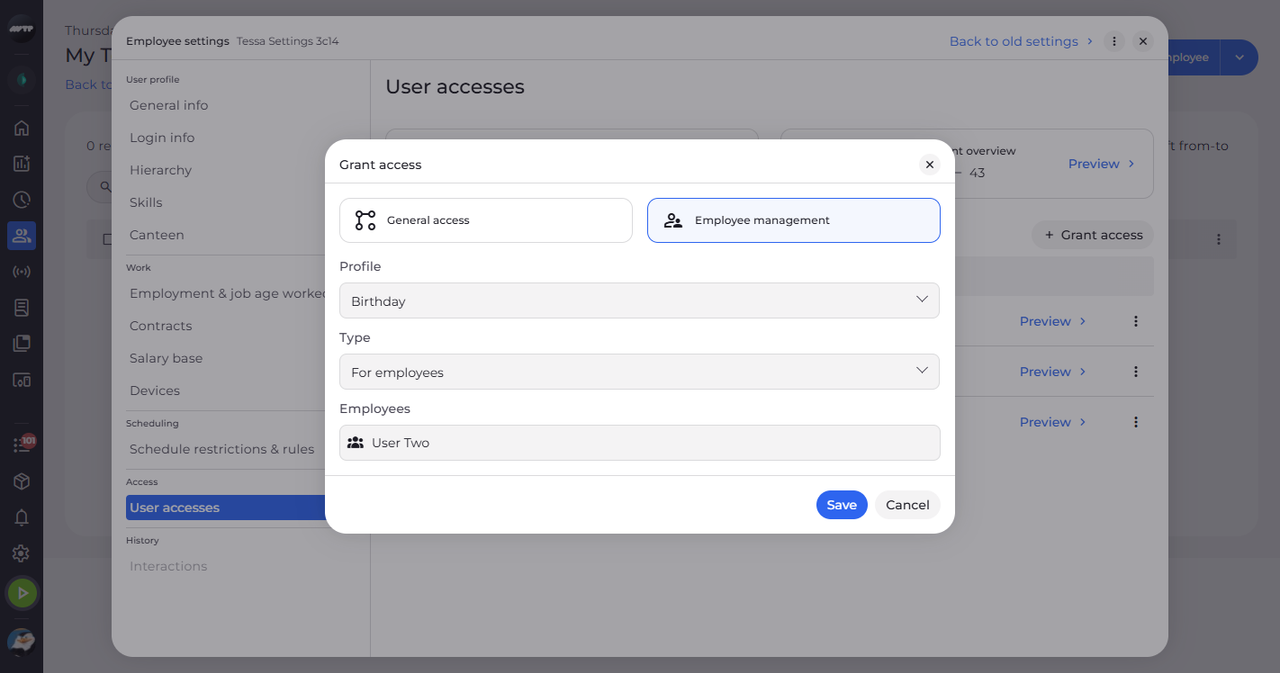
In My Team, click the employee's ⋮ button and choose Edit employee. Then click User accesses on the left and click Grant access. Pick the Profile, choose "For employees" in Type and pick the people in Employees.
Tip: In the Employees picker, search for a name and click it, or tick whole units.
-
Step 2: Check the new access
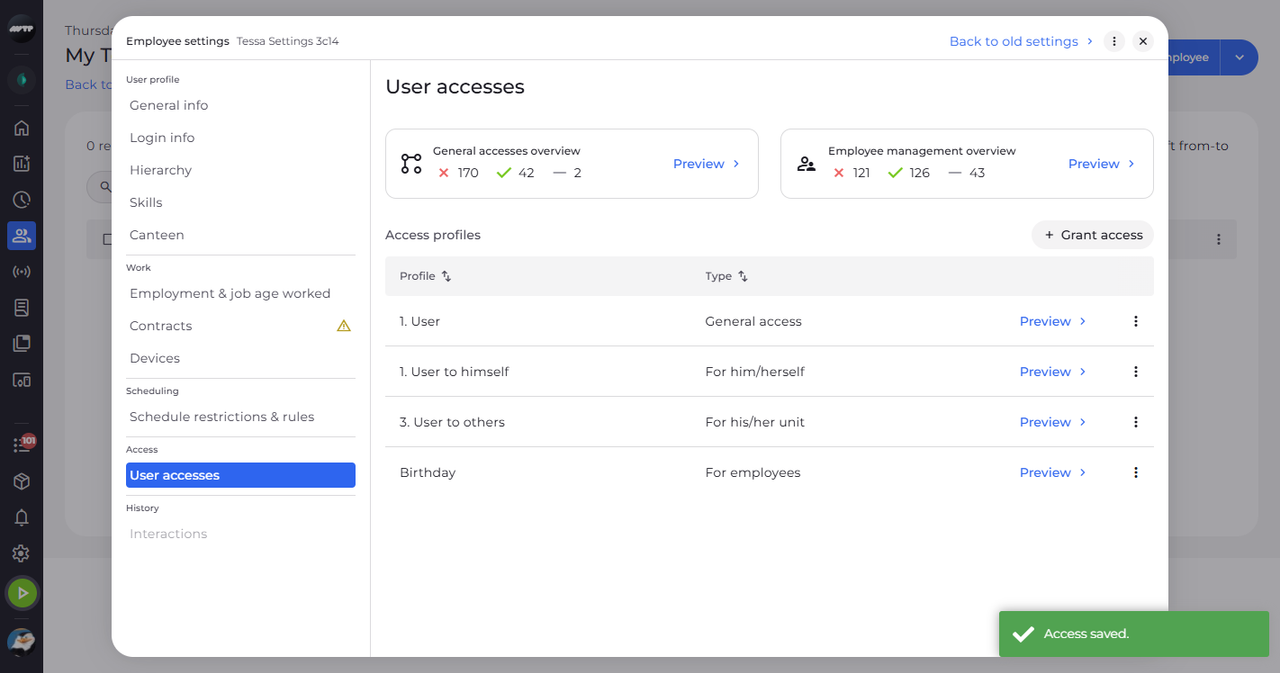
Click Save. A message confirms "Access saved." and the profile is listed for the chosen employees.
What happens next
The employee can manage the people you chose with this profile.
Good to know
- To take the access away, use the row's ⋮ → Delete.
Questions
Why is Save greyed out?
With "For employees" you must pick at least one person under Employees.