


Change an employee's username and e-mail
Change the username and e-mail an employee uses to sign in.
Before you start
You need:
- Access to My Team (the people icon in the side menu)
- The right to edit employees of your units
- An employee in one of your units
New to the app? Start with Sign in to the web app.
When to use it
When an employee needs a new username or their e-mail changes.
Step by step
-
Step 1: Open Login info
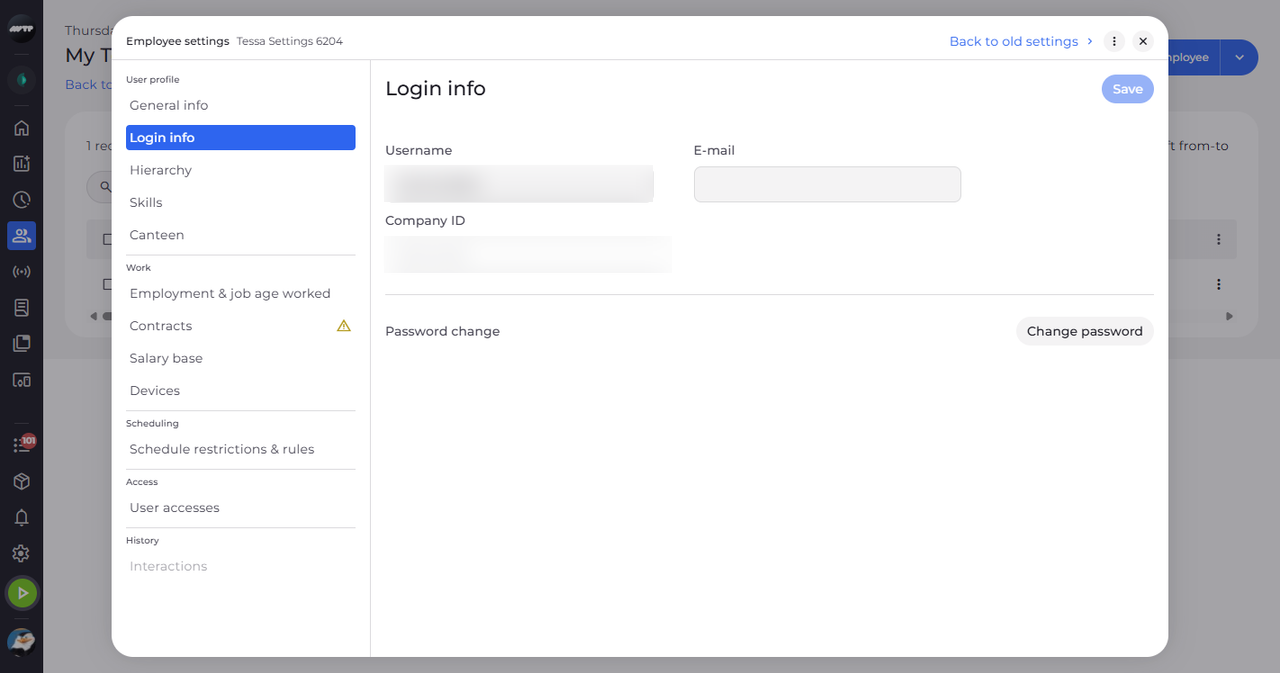
In My Team, click the employee's ⋮ button and choose Edit employee. Then click Login info on the left. You see the employee's Username, E-mail and Company ID.
Tip: Company ID is always read-only.
-
Step 2: Change the username and e-mail
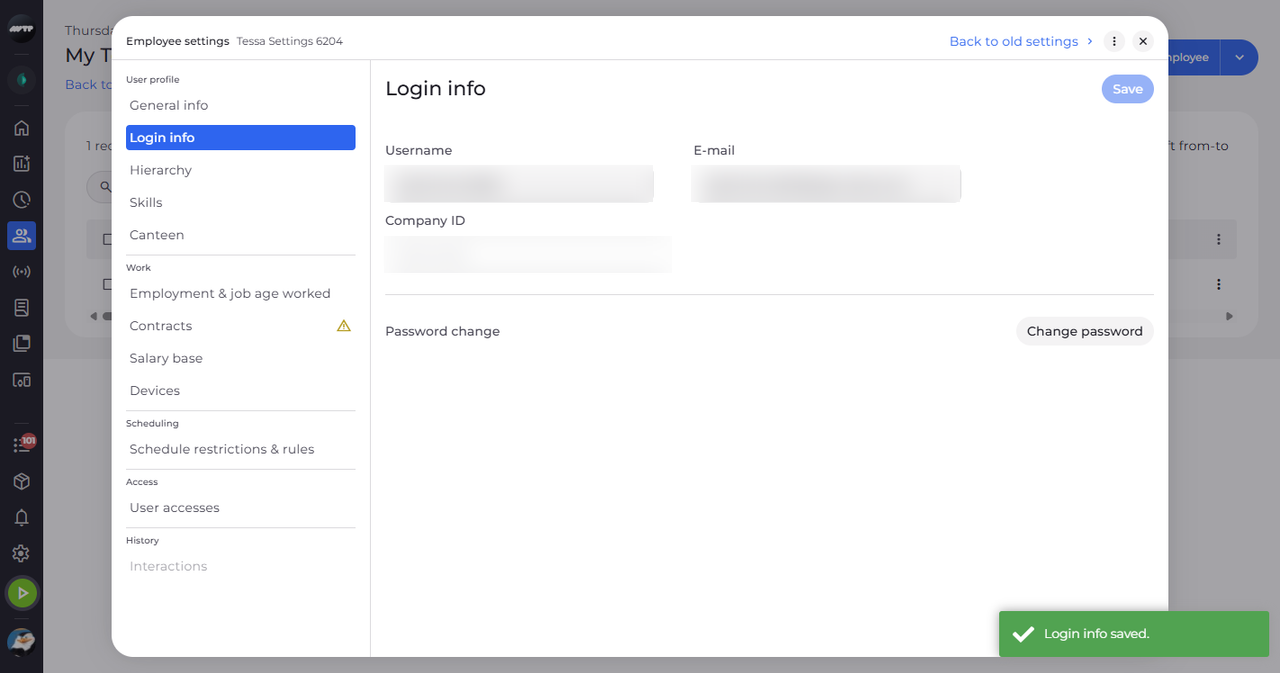
Type the new username in Username and the e-mail in E-mail, then click Save at the top right. A message confirms "Login info saved."
Tip: Spaces at the start and end are removed.
What happens next
The employee signs in with the new username from now on.
Good to know
- The Password change row with Change password appears only when this employee's password can be changed.
Questions
Why is Save greyed out?
Save is enabled only after you change something and every field is valid. Without the right to edit the section it stays disabled with "You do not have access to edit this section".
Why is the e-mail refused?
It is not a valid address: "Enter a valid e-mail address." A username that another employee already uses is refused too.