


Delete an employee
Delete an employee who was added by mistake. This cannot be undone.
Before you start
You need:
- Access to My Team (the people icon in the side menu)
- The right to edit employees of your units
- The right to delete employees
- An employee in one of your units
New to the app? Start with Sign in to the web app.
When to use it
When an employee was added by mistake and has no data that must be kept.
Step by step
-
Step 1: Delete the employee
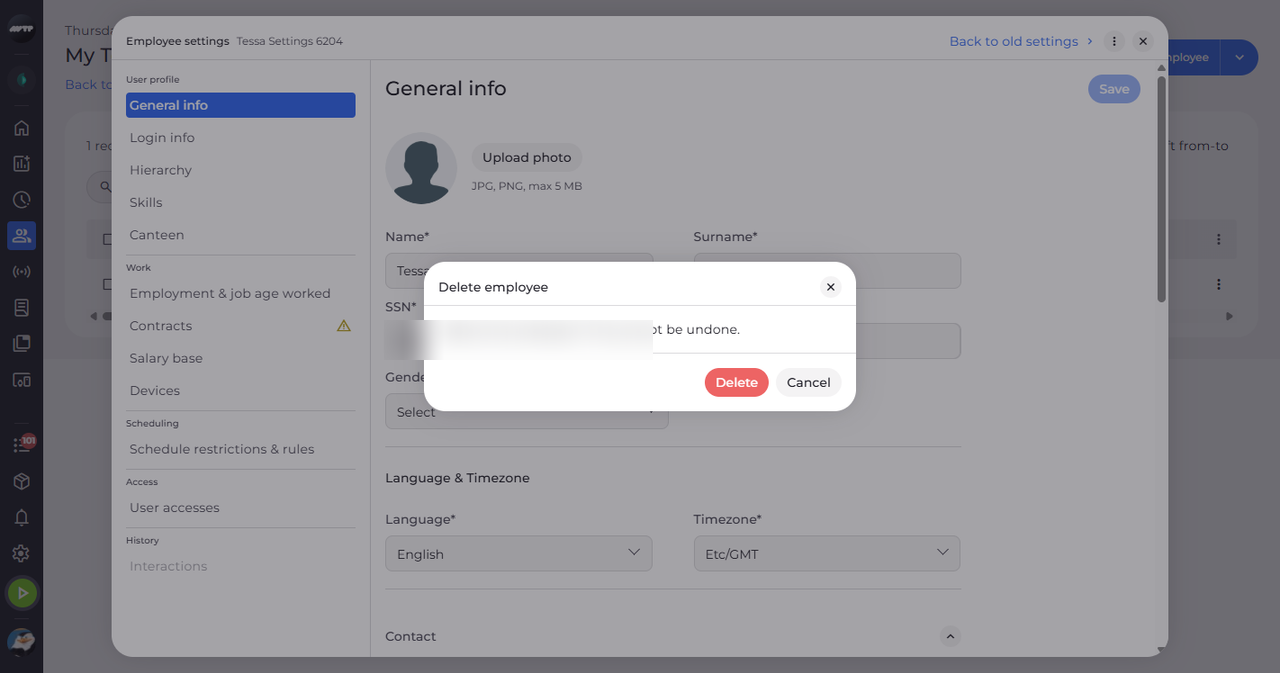
In My Team, click the employee's ⋮ button and choose Edit employee. Then click the ⋮ button next to X at the top right of the settings and choose Delete. Delete employee asks you to confirm.
Tip: My Team's row ⋮ → Delete employee does the same.
-
Step 2: Check that the employee is gone
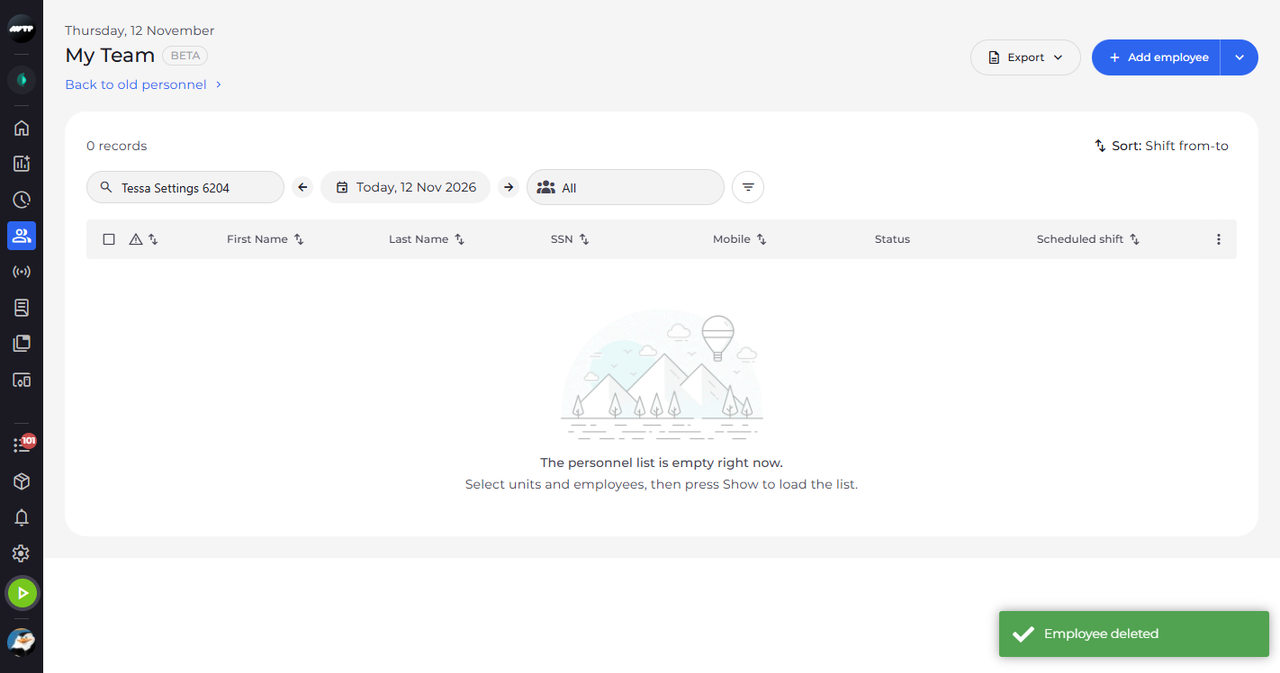
Click Delete. The settings close, a message confirms "Employee deleted", and My Team no longer finds the employee.
What happens next
The employee is deleted.
Good to know
- Deleting cannot be undone.
Questions
Why is there no Delete?
Delete is left out of the menu when you may not delete this employee or when the employee has data that prevents deletion.
What does "Employee not deleted" mean?
The employee got data that prevents deletion after you opened the menu: "The employee now has data that prevents deletion."