


Change a contract
Change a contract of an employee - its dates, its unit or the note about it.
Before you start
You need:
- Access to My Team (the people icon in the side menu)
- The right to edit employees of your units
- An employee in one of your units
New to the app? Start with Sign in to the web app.
When to use it
When a contract's period or details change.
Step by step
-
Step 1: Add a note under About
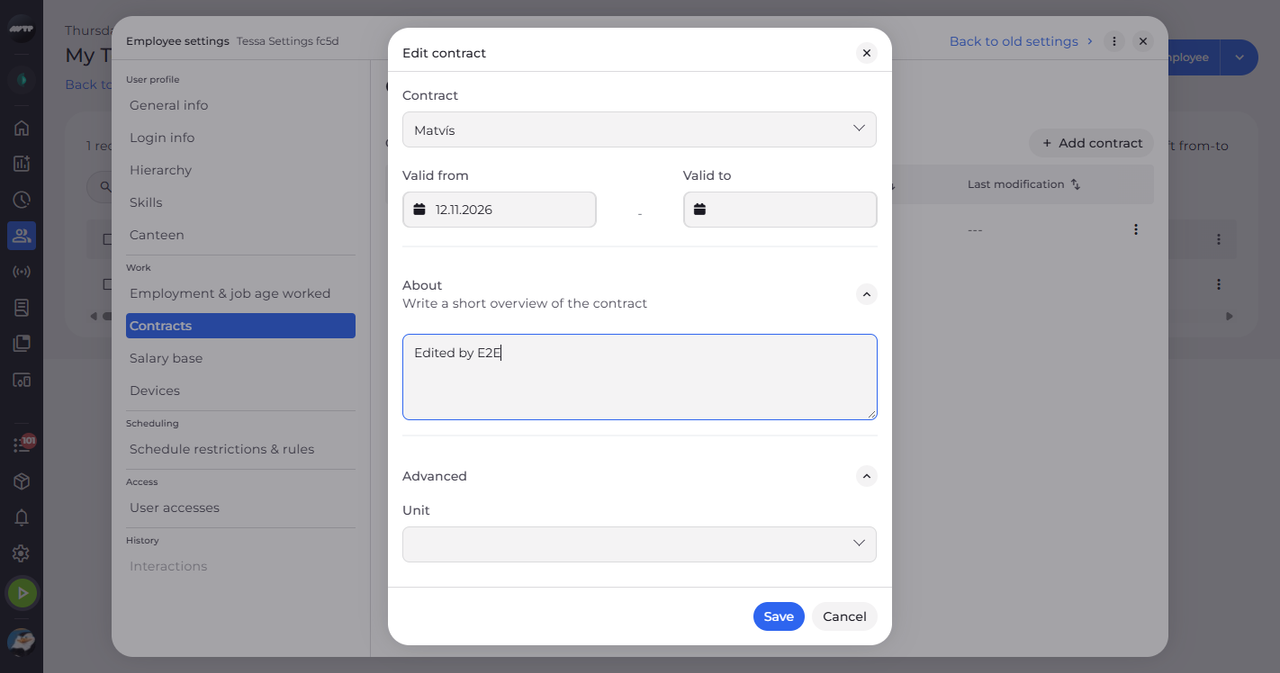
In My Team, click the employee's ⋮ button and choose Edit employee. Then click Contracts on the left, click the ⋮ button at the end of the contract's row and choose Edit. In Edit contract, change what you need - here a short note under About.
Tip: In Edit contract you can change every field: Contract, Valid from, Valid to, About and, under Advanced, Unit.
-
Step 2: Save the contract
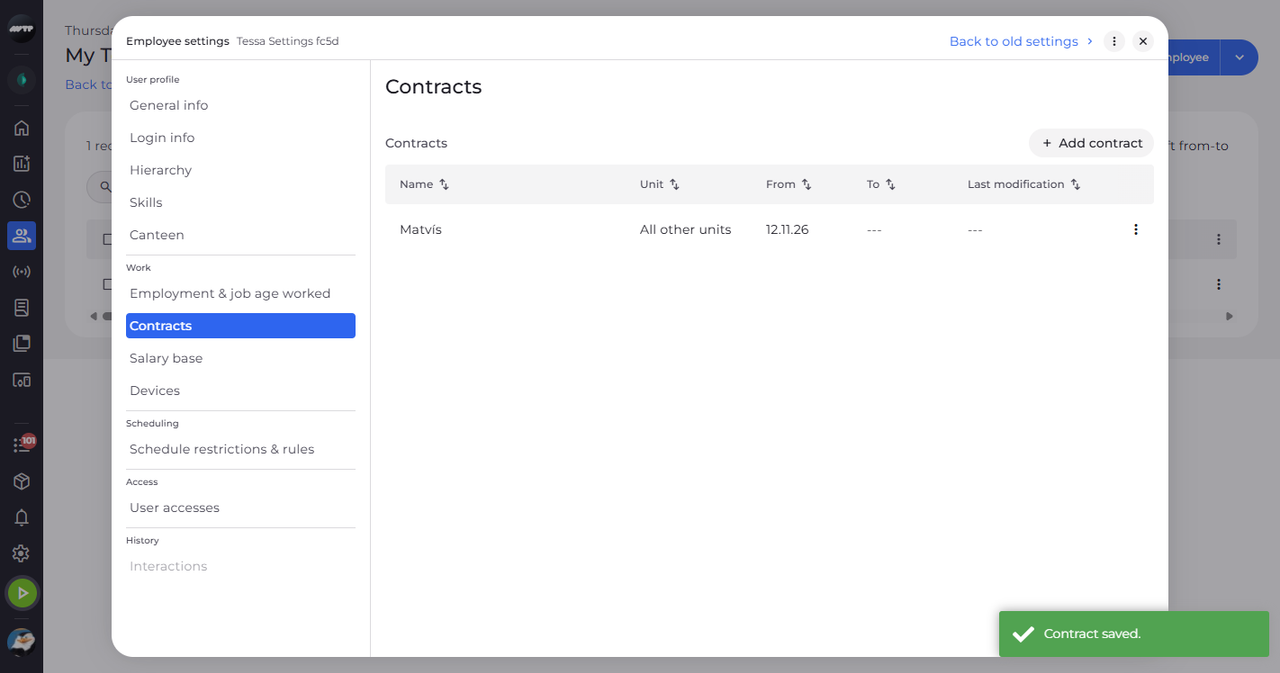
Click Save. A message confirms "Contract saved.".
What happens next
The contract is saved with your changes.
Good to know
- An empty Unit makes the contract apply to "All other units".
Questions
Why is my change refused?
The dialog stays open and says why - for example a date before the lock date.