


Change a unit assignment or the base unit
Make another of an employee's units their base unit, and change an assignment's details, such as the position.
Before you start
You need:
- Access to My Team (the people icon in the side menu)
- The right to edit employees of your units
- An employee in one of your units
New to the app? Start with Sign in to the web app.
When to use it
When an employee moves to another unit as their main one.
Step by step
-
Step 1: Open the unit's ⋮ menu
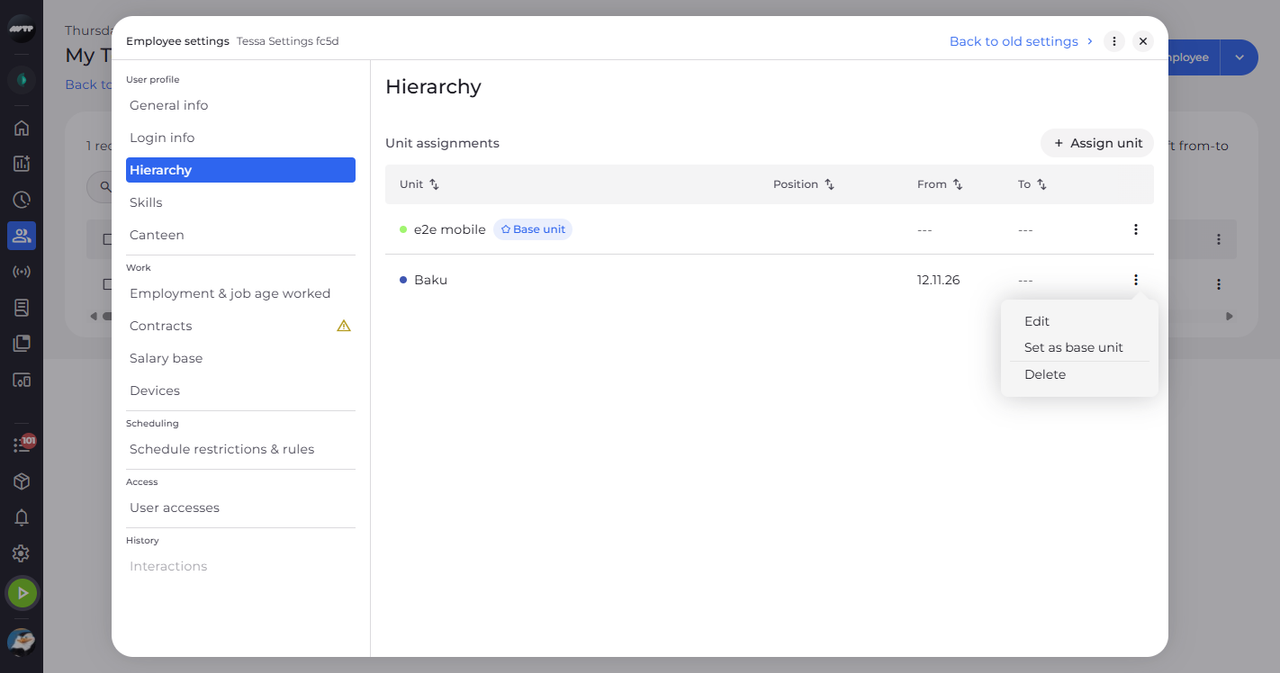
In My Team, click the employee's ⋮ button and choose Edit employee. Then click Hierarchy on the left and click the ⋮ button at the end of the unit's row. The menu offers Edit, Set as base unit and Delete.
Tip: Set as base unit is offered only on an assignment with one unit that is not the base yet.
-
Step 2: Check the new base unit
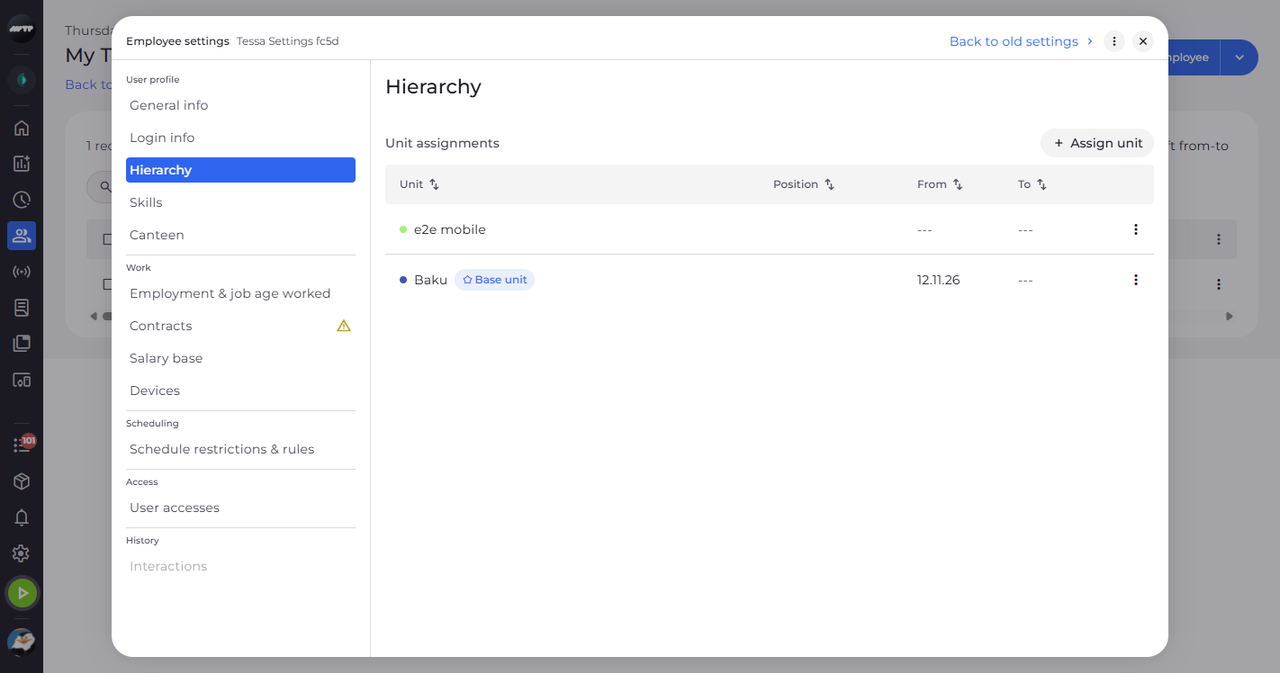
Click Set as base unit. The unit gets the Base unit badge right away.
-
Step 3: Edit the unit assignment
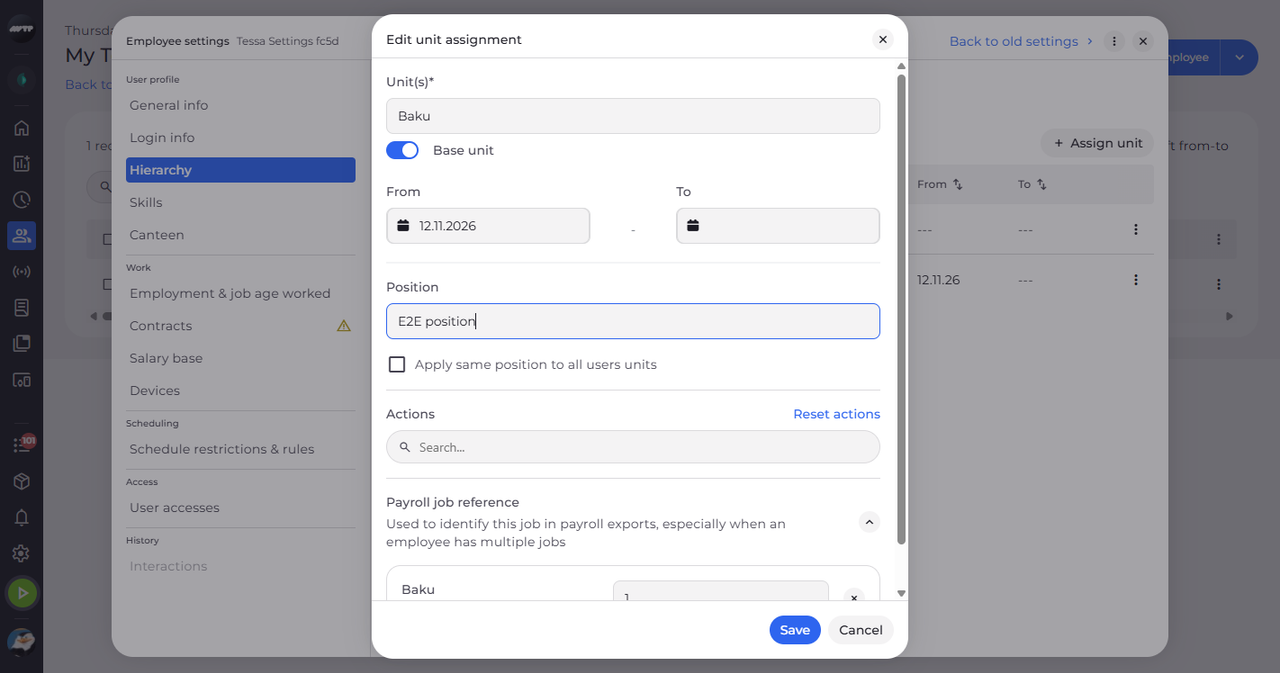
To change the assignment, open its ⋮ menu again and choose Edit. In Edit unit assignment, type the Position and click Save.
Tip: You can change the units, From, To, Position, Actions and Payroll job reference.
-
Step 4: Check the position
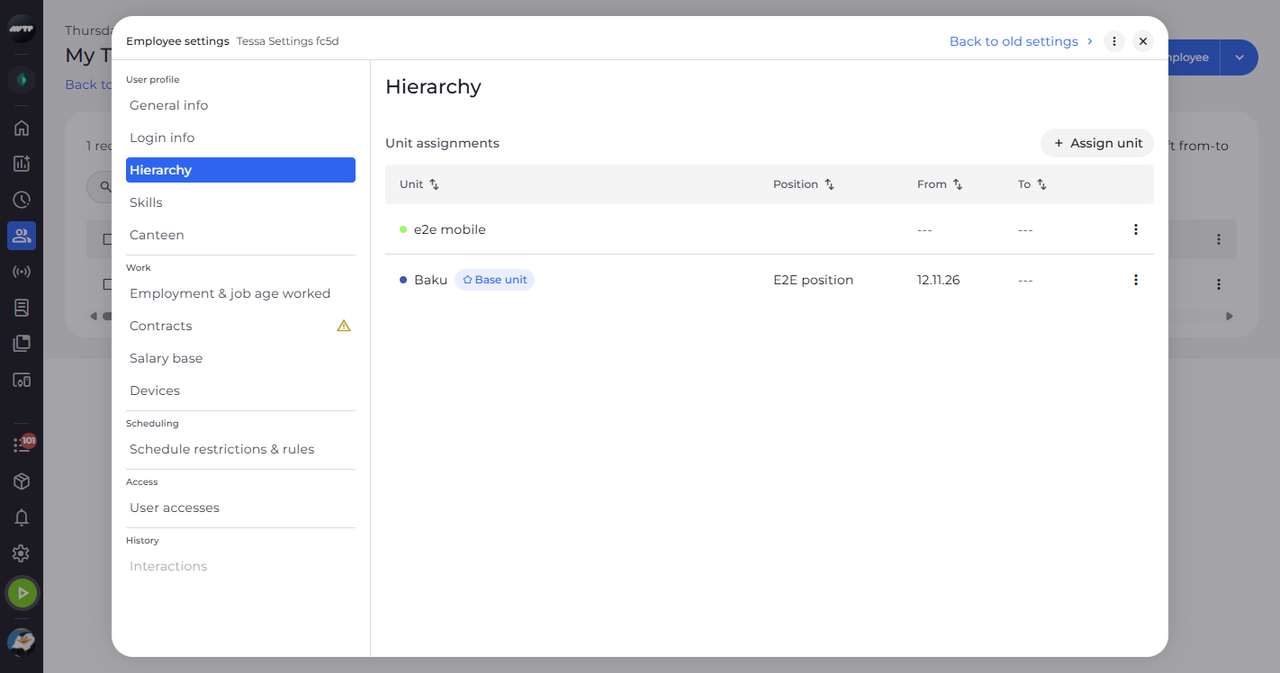
The dialog closes and the row shows the position.
What happens next
The unit is the employee's base unit and the assignment has your changes.
Good to know
- Edit and Delete are hidden on assignments you may not change.
- The assignment that holds the base unit cannot be deleted - make another unit the base first.
Questions
Why don't I see Set as base unit?
The assignment has several units, is already the base, or its unit cannot be a base unit.