


Add or remove a scheduling restriction
Block an employee from being scheduled at certain hours on certain days, and remove the block again.
Before you start
You need:
- Access to My Team (the people icon in the side menu)
- The right to edit employees of your units
- An employee in one of your units
New to the app? Start with Sign in to the web app.
When to use it
When an employee cannot work at certain times, for example on Monday mornings.
Step by step
-
Step 1: Open Schedule restrictions & rules
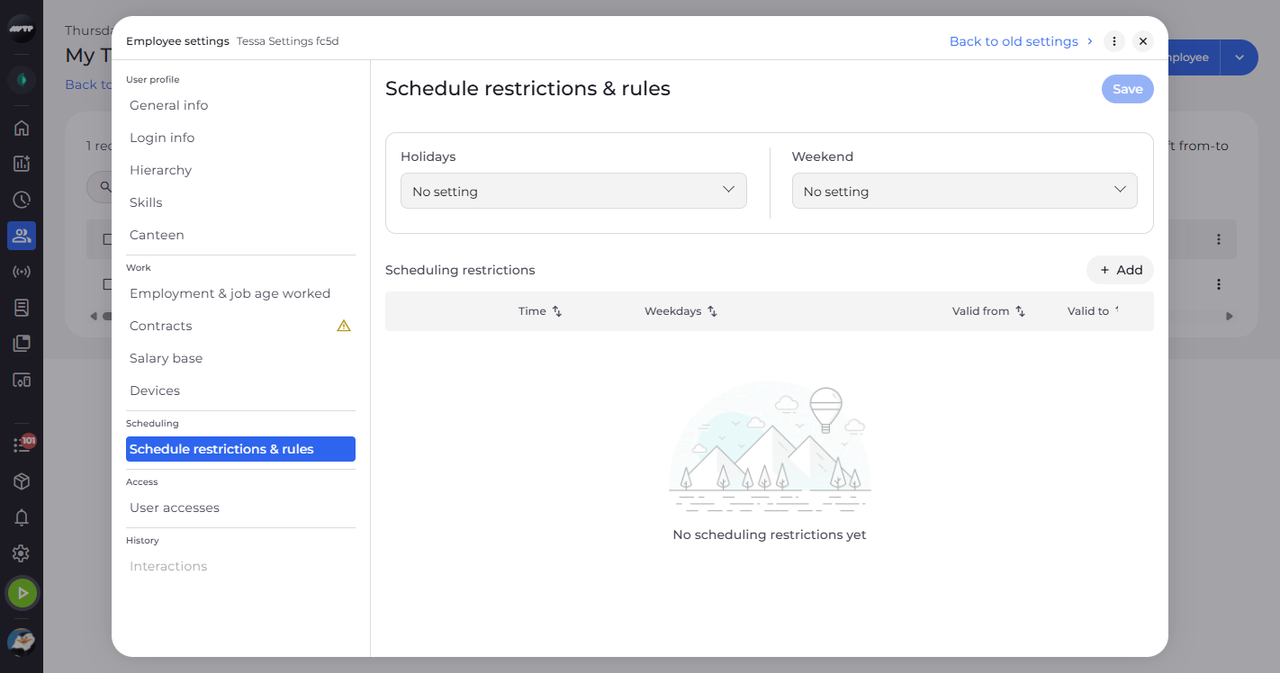
In My Team, click the employee's ⋮ button and choose Edit employee. Then click Schedule restrictions & rules on the left. Scheduling restrictions is listed under the planning rules.
-
Step 2: Add a scheduling restriction
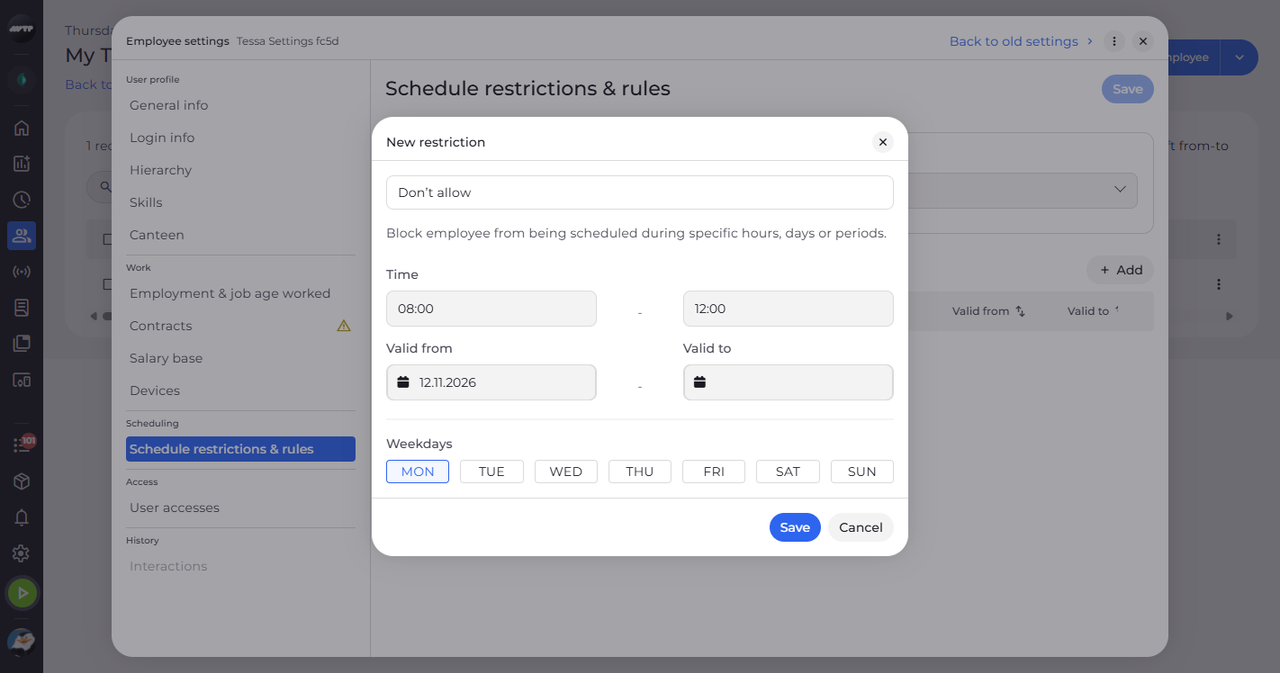
Click Add under Scheduling restrictions. In New restriction, type the start and end in Time and pick the days under Weekdays.
Tip: Both Time fields and at least one day under Weekdays are needed before Save works. An end time earlier than the start runs past midnight.
-
Step 3: Check the saved restriction
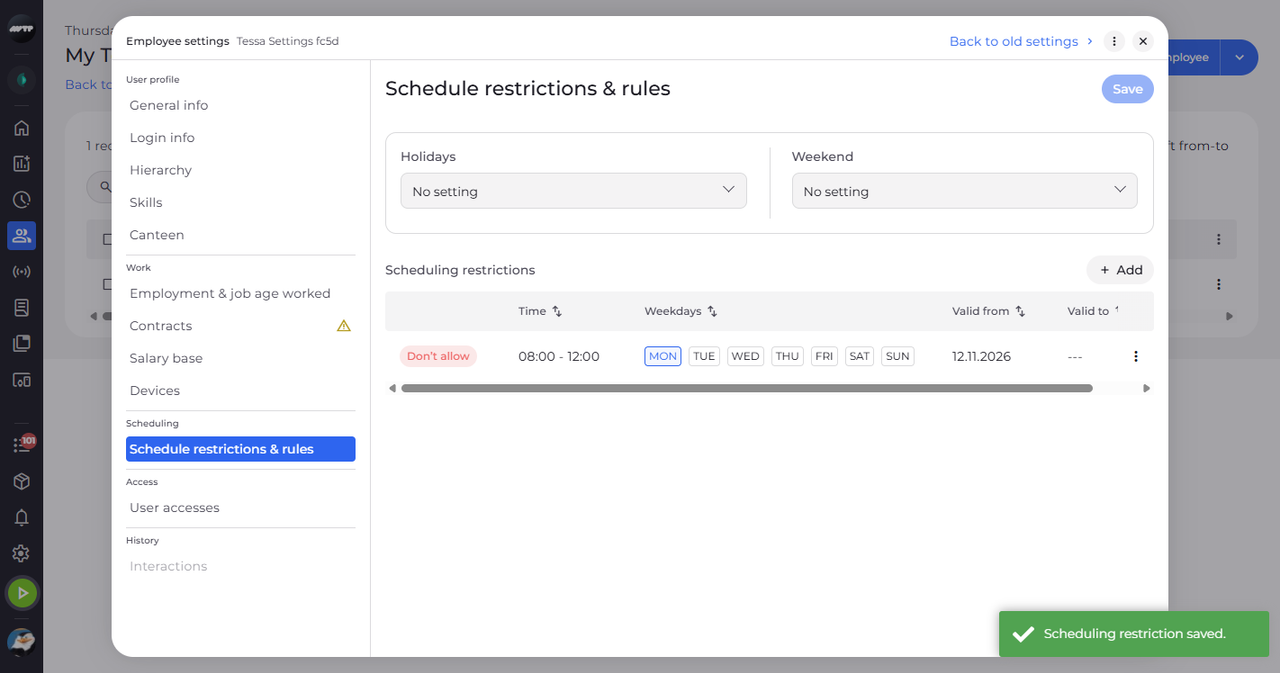
Click Save in the dialog. The restriction is listed with its time and days, and a message confirms "Scheduling restriction saved.".
-
Step 4: Delete a restriction
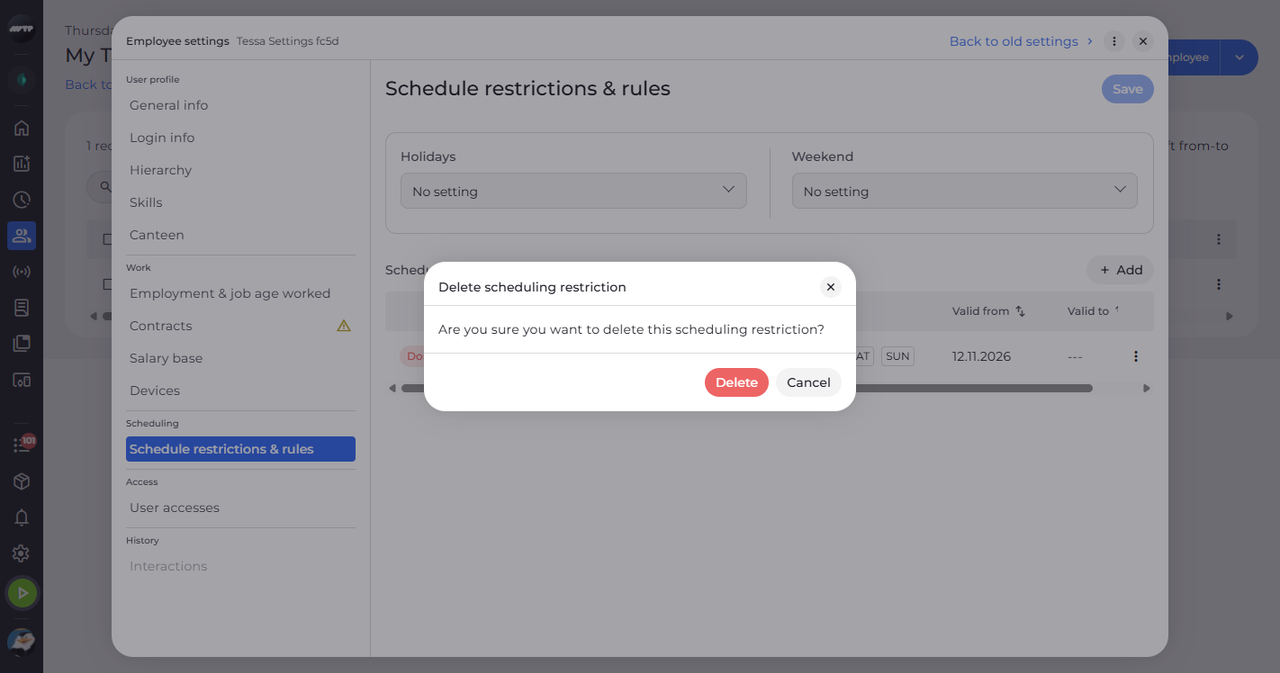
To remove a restriction, click the ⋮ button at the end of its row and choose Delete. Delete scheduling restriction asks whether you are sure.
Tip: Confirm with Delete; the settings confirm "Scheduling restriction deleted."
What happens next
The employee is not scheduled at the blocked times, or is again after you delete the restriction.
Good to know
- Every restriction blocks scheduling (Don’t allow) - the type cannot be changed.
- Valid from is required, Valid to is optional.
- With no restrictions, the section shows "No scheduling restrictions yet".
Questions
Why is Save greyed out?
Fill in both Time fields and pick at least one day - the dialog shows no message for these.