


Set a new password for an employee
Give an employee a new password, for example when they have forgotten theirs.
Before you start
You need:
- Access to My Team (the people icon in the side menu)
- The right to edit employees of your units
- An employee in one of your units
New to the app? Start with Sign in to the web app.
When to use it
When an employee has forgotten their password.
Step by step
-
Step 1: Open More actions
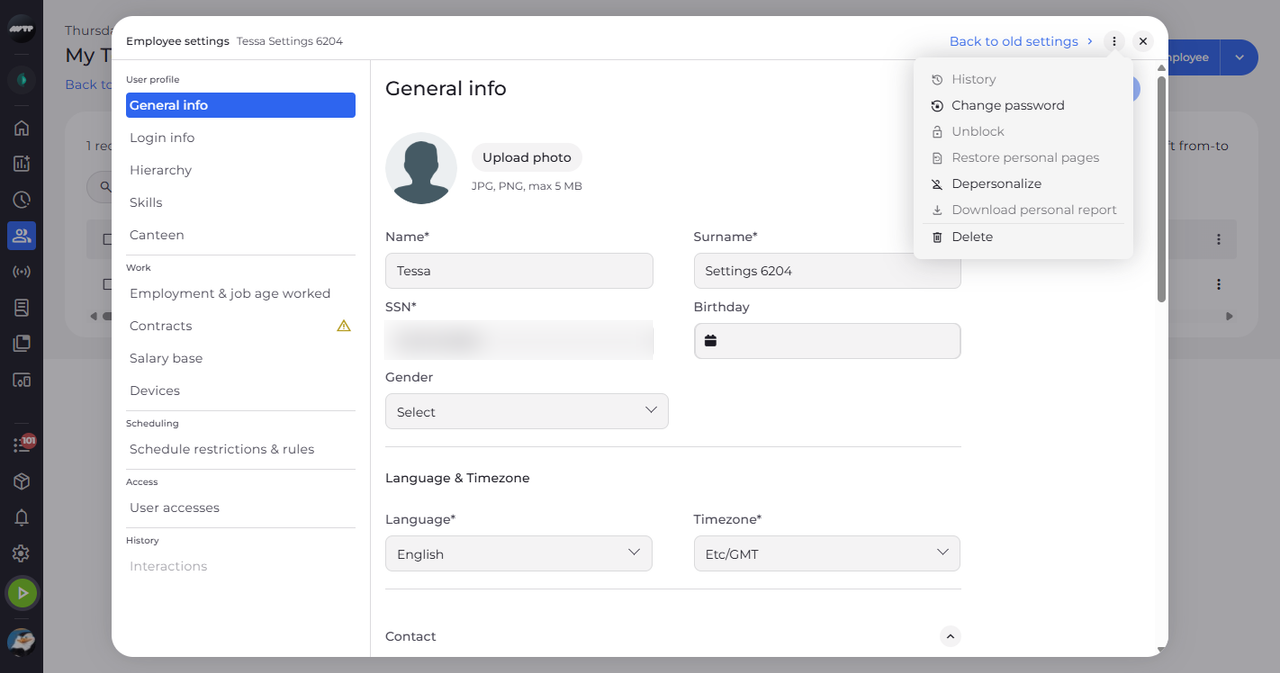
In My Team, click the employee's ⋮ button and choose Edit employee. Then click the ⋮ button next to X at the top right of the settings. A menu with more actions opens; choose Change password.
Tip: Greyed-out entries tell you why when you point at them, for example "This employee is not blocked".
-
Step 2: Type the new password twice
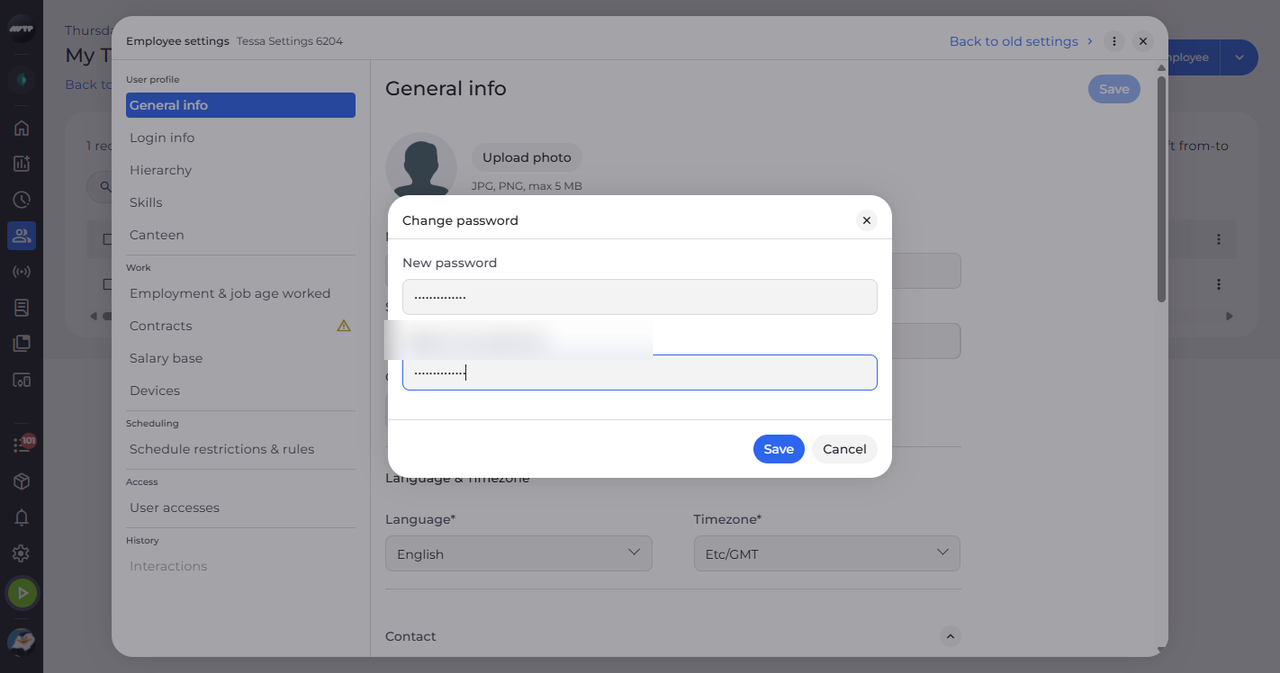
In Change password, type the new password in New password and the same password again in Repeat new password.
Tip: There is no field for the current password. The company's password rules are listed under the fields.
-
Step 3: Save the new password
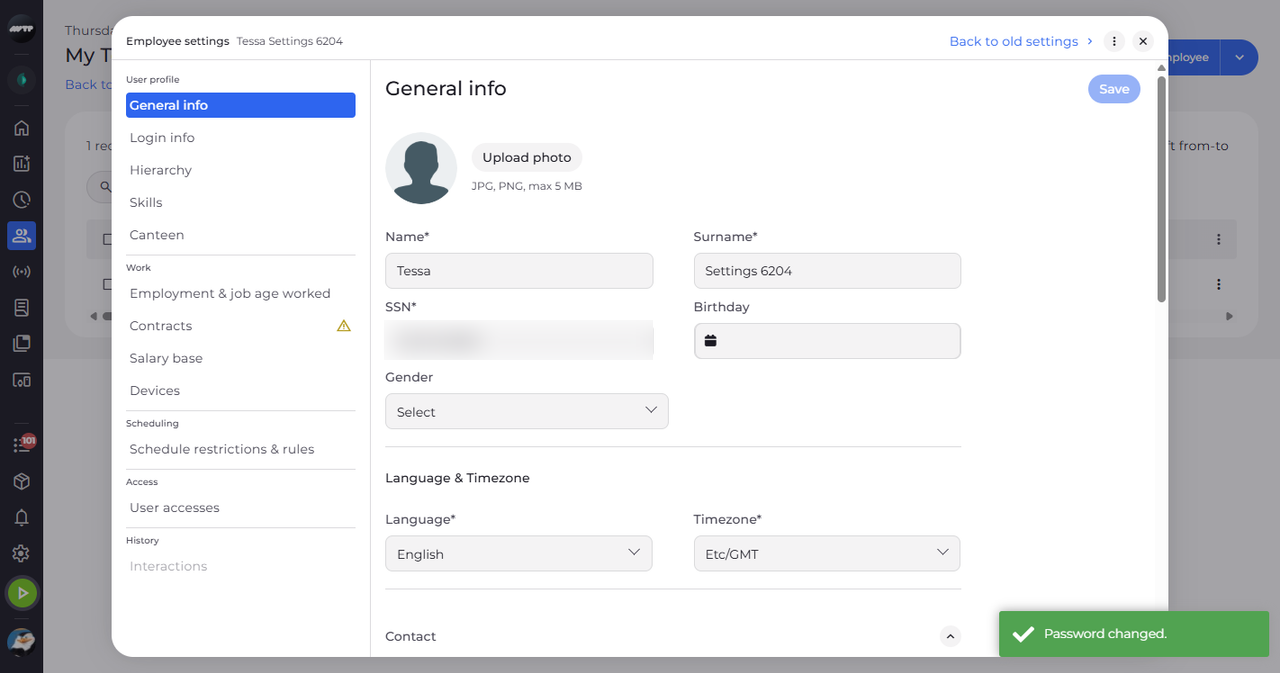
Click Save. The dialog closes and a message confirms "Password changed."
What happens next
The employee signs in with the new password. Tell them the password in a safe way.
Good to know
- Login info has the same Change password button.
- More actions also holds Unblock (for an employee locked out after too many wrong passwords), Restore personal pages (super administrators only), Depersonalize and Delete.
- Depersonalize cannot be undone and is refused while the employee has an active employment.
Questions
Why can't I save the new password?
Both fields must match ("The passwords do not match."), the password cannot contain spaces ("The password cannot contain spaces.") and it must meet every rule listed under the fields.
Why is Change password greyed out?
"Not available for this employee" - this employee's password cannot be changed here.