


Change a canteen's dates
Change the dates an employee uses a canteen, for example to end it.
Before you start
You need:
- Access to My Team (the people icon in the side menu)
- The right to edit employees of your units
- An employee in one of your units
New to the app? Start with Sign in to the web app.
When to use it
When an employee stops using a canteen from a given date.
Step by step
-
Step 1: Set the end date
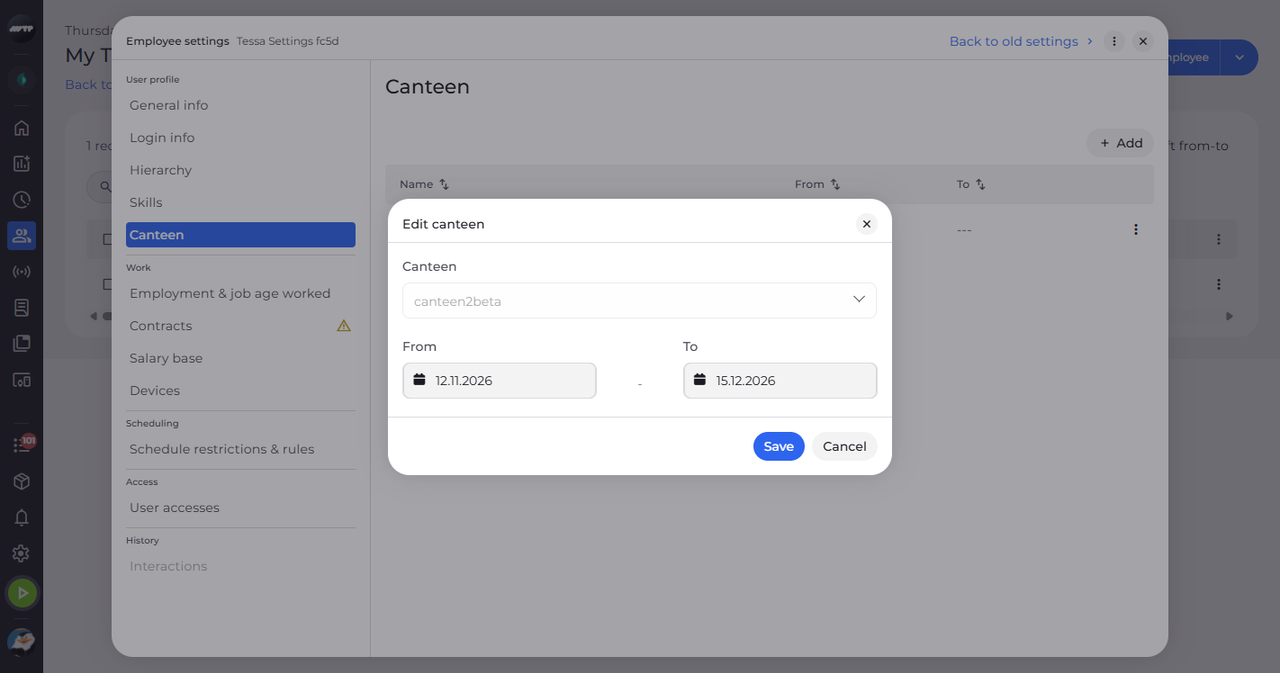
In My Team, click the employee's ⋮ button and choose Edit employee. Then click Canteen on the left, click the ⋮ button at the end of the canteen's row and choose Edit. In Edit canteen, click To and pick the last day in the calendar.
Tip: Only From and To can be changed - the canteen itself is locked. Type the date in the calendar's text field and press Enter, or click the day.
-
Step 2: Check the new end date
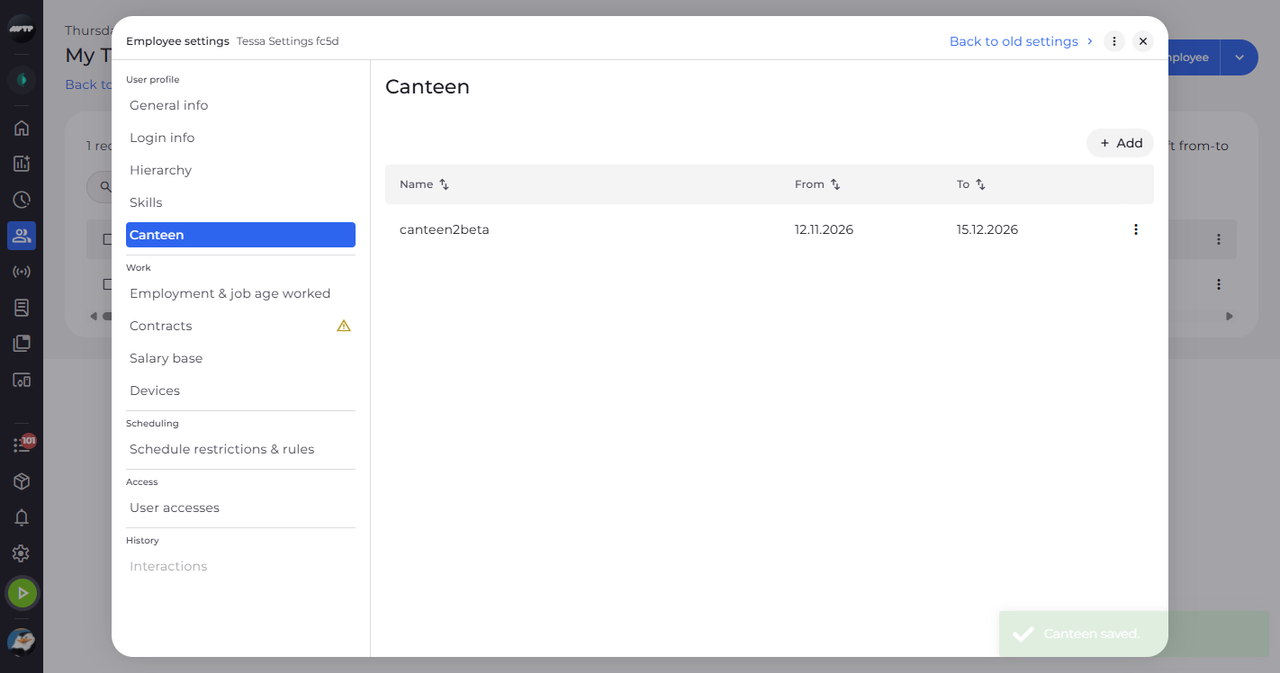
Click Save. A message confirms "Canteen saved." and the row shows the new end date.
What happens next
The canteen ends on the date you set.
Good to know
- To use another canteen, add it as a new row and end the old one.
Questions
Why can't I save the dates?
To cannot be before From: "The end date cannot be before the start date."