


Change a scheduling restriction
Change the hours or days of a scheduling restriction.
Before you start
You need:
- Access to My Team (the people icon in the side menu)
- The right to edit employees of your units
- An employee in one of your units
New to the app? Start with Sign in to the web app.
When to use it
When the times an employee cannot work change.
Step by step
-
Step 1: Change the hours
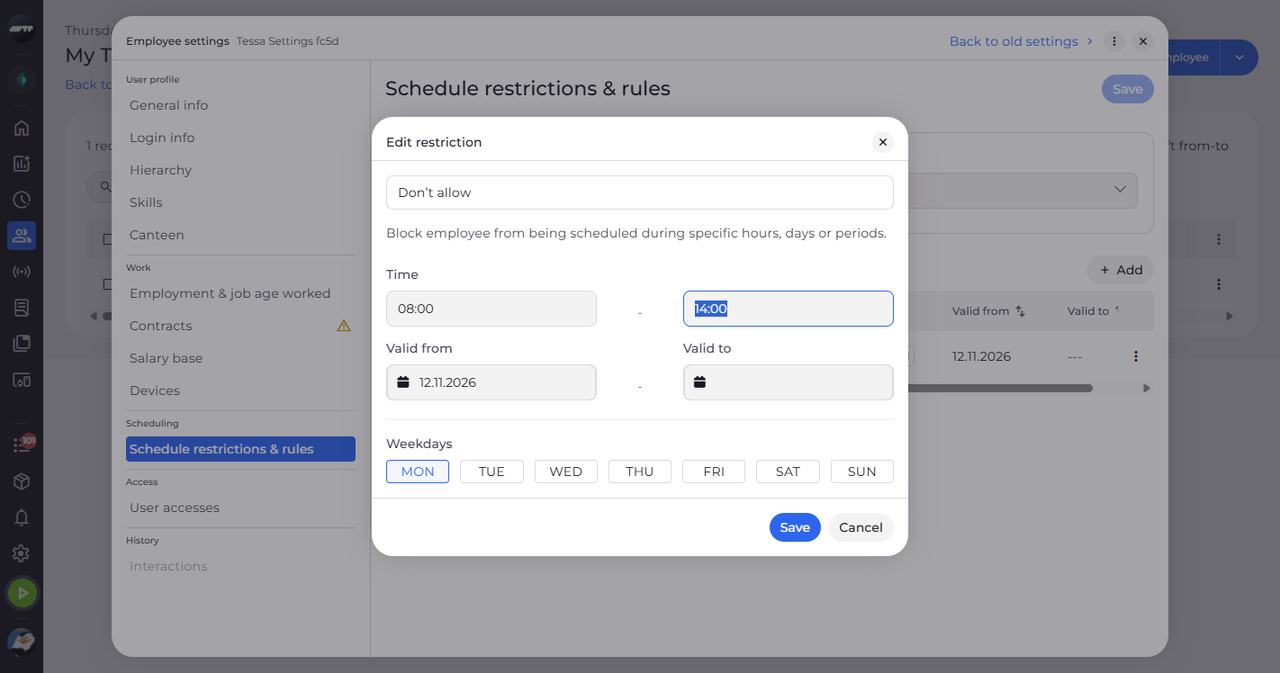
In My Team, click the employee's ⋮ button and choose Edit employee. Then click Schedule restrictions & rules on the left, click the ⋮ button at the end of the restriction's row and choose Edit. In Edit restriction, change the time.
-
Step 2: Check the new hours
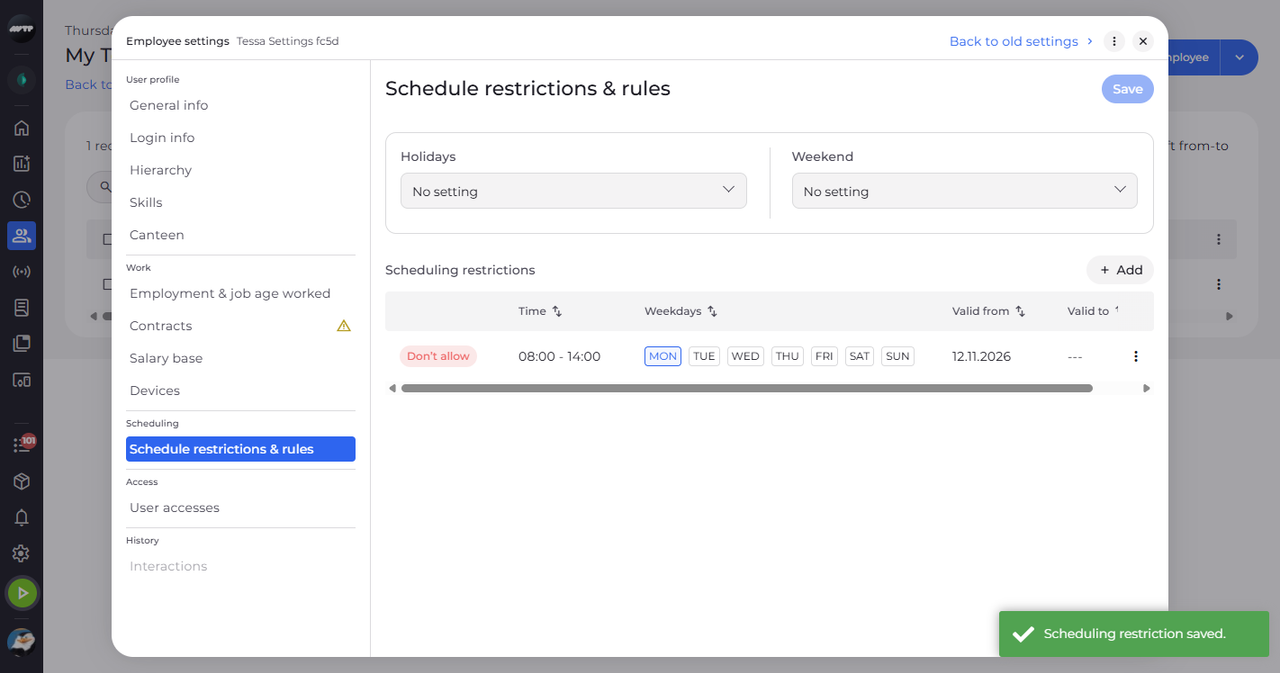
Click Save in the dialog. A message confirms "Scheduling restriction saved." and the row shows the new hours.
What happens next
The restriction blocks the new hours.
Good to know
- If the save is refused, the dialog stays open and says why.