


Unblock an employee
Let an employee sign in again after they were blocked for typing a wrong password too many times.
Before you start
You need:
- Access to My Team (the people icon in the side menu)
- The right to edit employees of your units
- An employee in one of your units
New to the app? Start with Sign in to the web app.
When to use it
When an employee is locked out after too many wrong passwords.
Step by step
-
Step 1: Open More actions
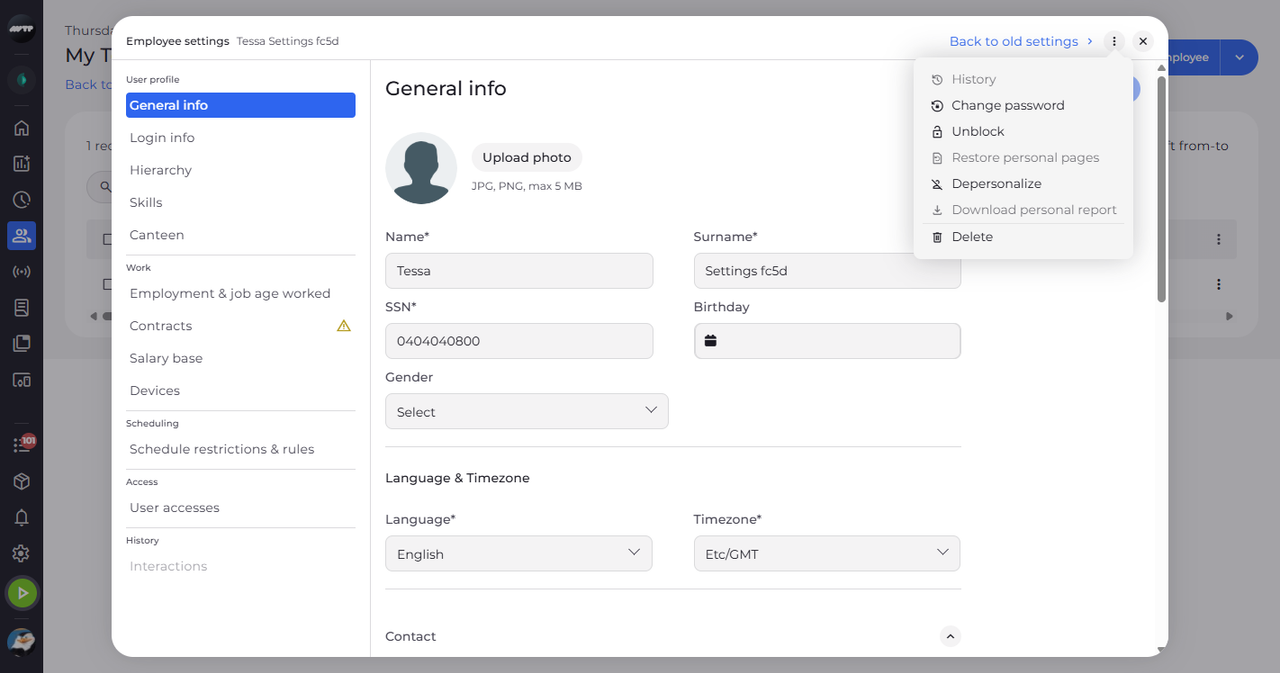
In My Team, click the employee's ⋮ button and choose Edit employee. Then click the ⋮ button next to X at the top right of the settings. A menu with more actions opens; Unblock is active when the employee is blocked.
Tip: Unblock is greyed out when the employee is not blocked ("This employee is not blocked") or you may not unblock them.
-
Step 2: Unblock the employee
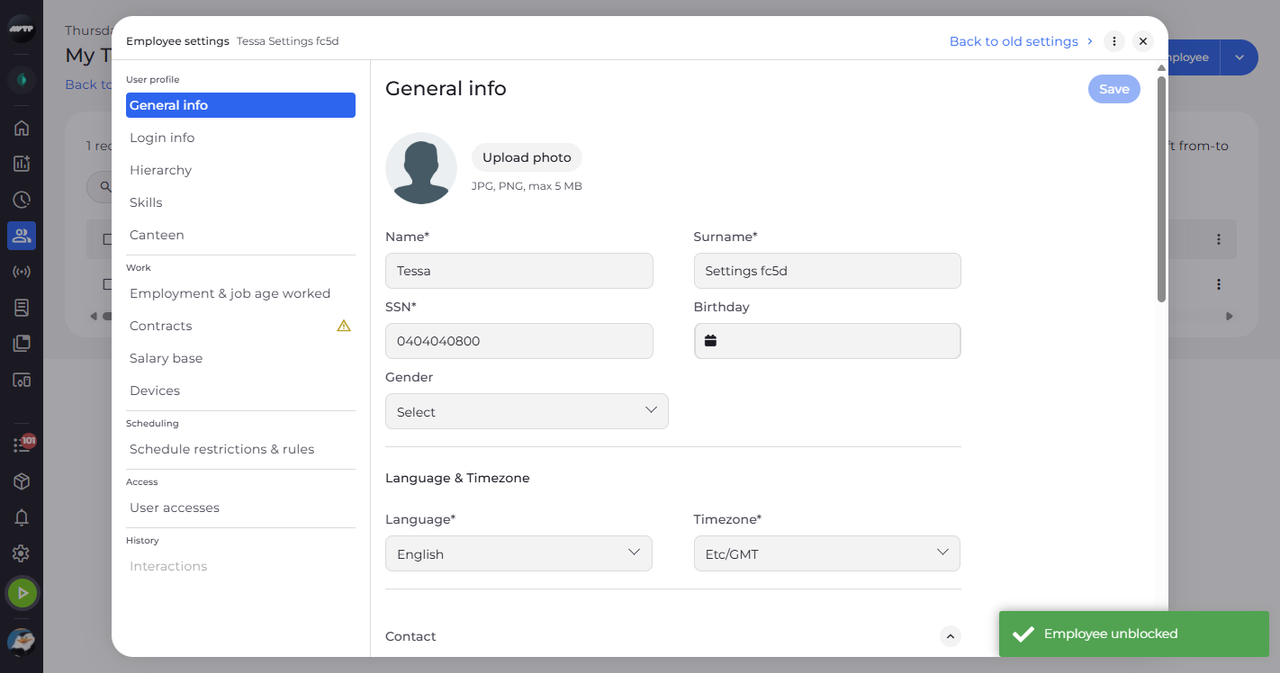
Click Unblock. A message confirms "Employee unblocked".
Tip: There is no confirmation question.
What happens next
The employee can sign in again.
Good to know
- The employee can sign in again right away with their password. If they forgot it, set a new one with Change password.
Questions
Why is Unblock greyed out?
The employee is not blocked, or you do not have the right to unblock them. The menu checks again every time you open it.