


Preview an employee's rights
See what an employee can do - all their rights together, or the rights of one profile.
Before you start
You need:
- Access to My Team (the people icon in the side menu)
- The right to edit employees of your units
- An employee in one of your units
New to the app? Start with Sign in to the web app.
When to use it
When you want to check what an employee can and cannot do.
Step by step
-
Step 1: Preview the combined rights
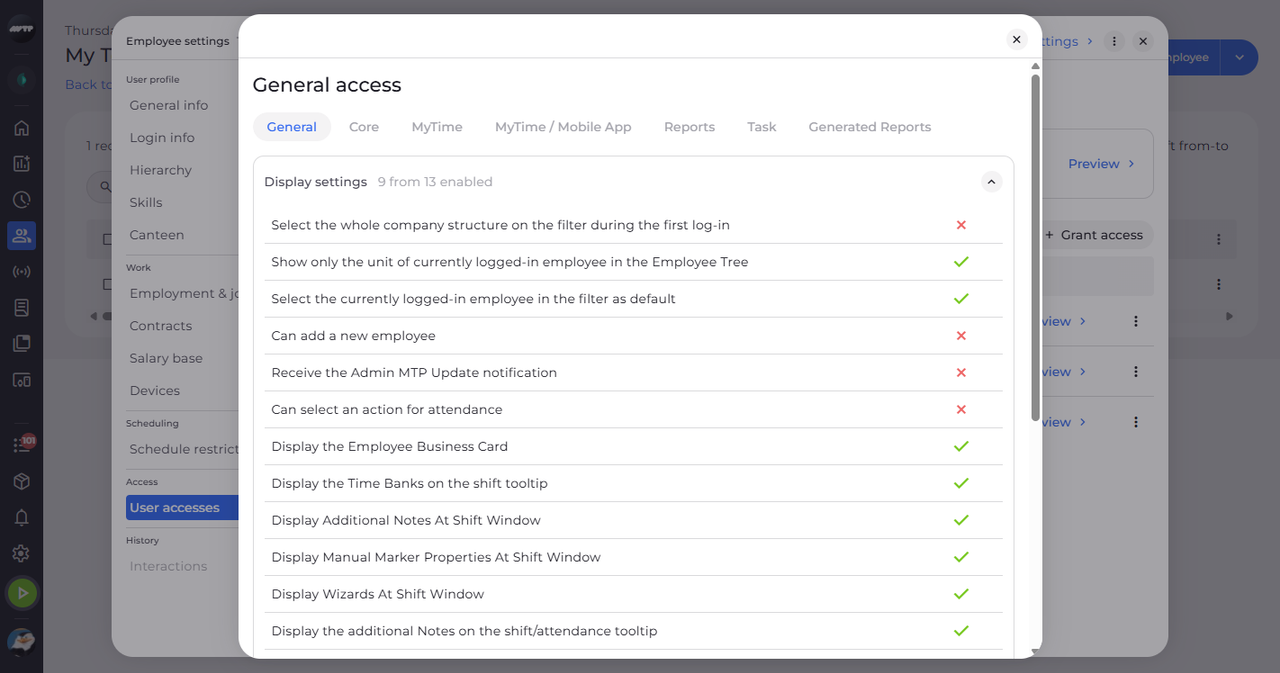
In My Team, click the employee's ⋮ button and choose Edit employee. Then click User accesses on the left and click Preview on General accesses overview. A window lists all the employee's general rights, grouped.
Tip: Each group shows how many of its rights are enabled; a tick means granted, a cross means not.
-
Step 2: Switch between the tabs
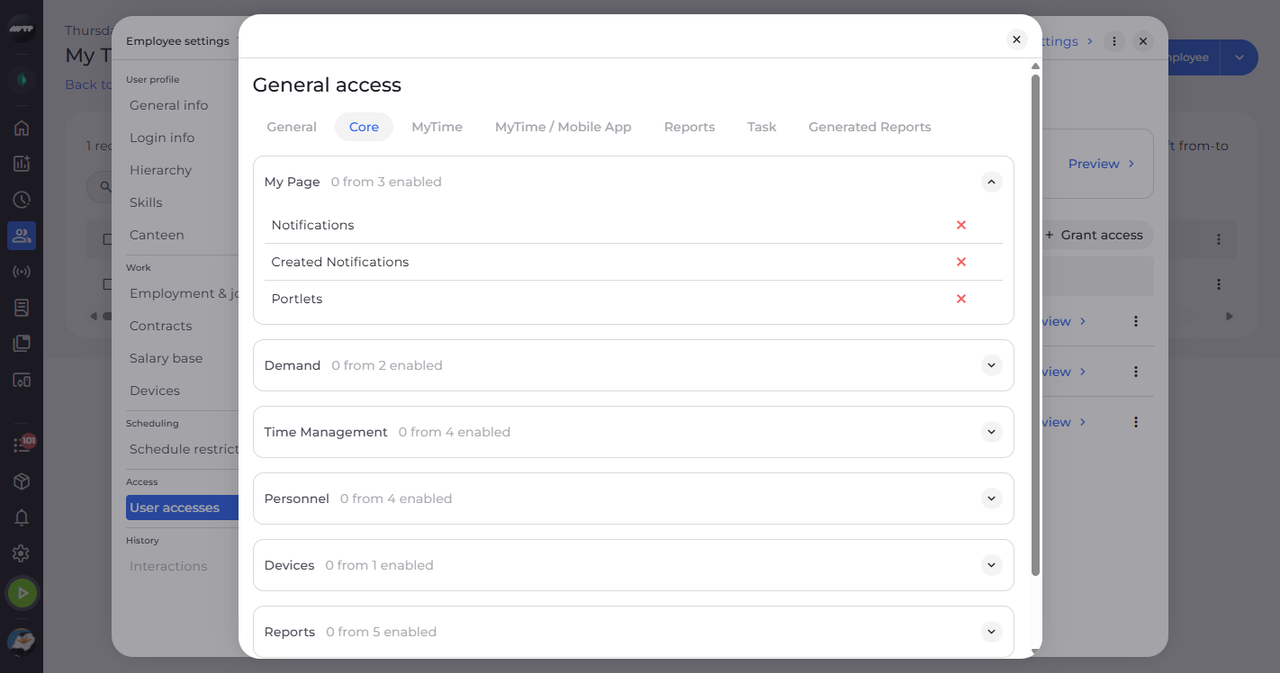
Click a tab at the top to see another part of the rights - here Core. Close the window with X.
-
Step 3: Preview one profile
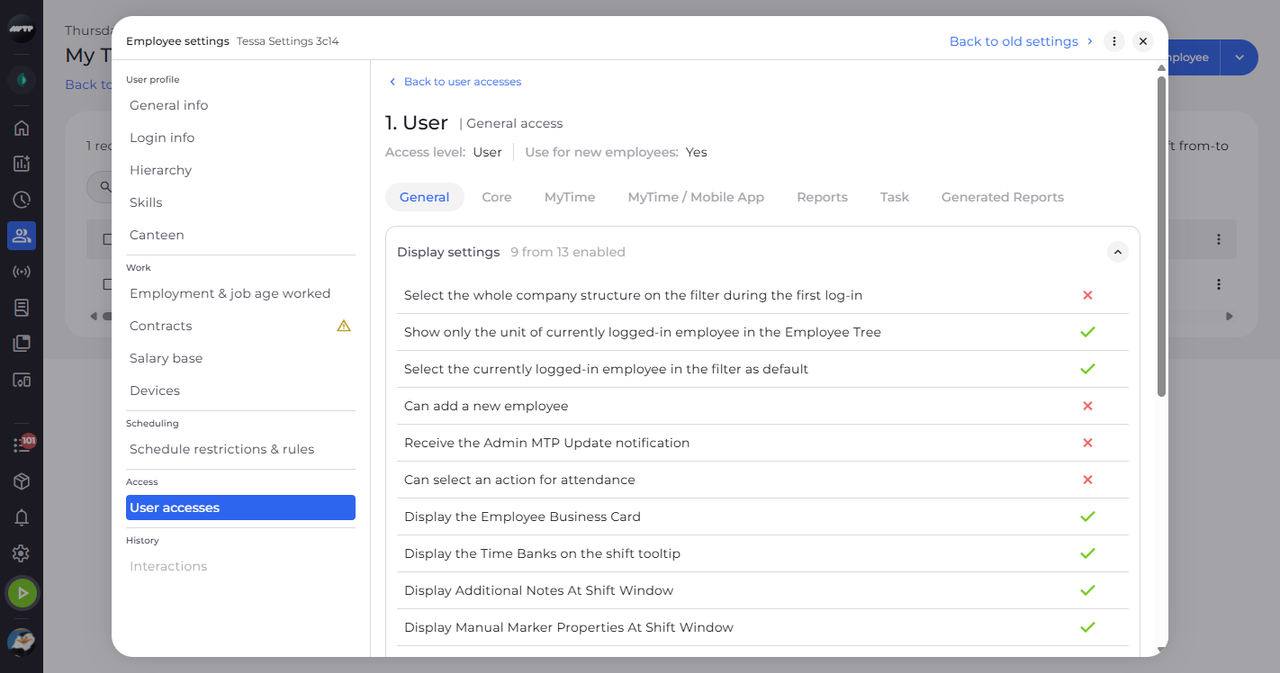
Click Preview on a profile row. The list is replaced by that profile's rights.
Tip: Click Back to user accesses to return to the list.
What happens next
You know which rights the employee has and which profile gives them.
Good to know
- The two overview cards count the rights that are denied, granted and not applicable.