


Assign a unit with actions and a payroll reference
Assign an employee to a unit with only some of its actions, and give the job a payroll reference.
Before you start
You need:
- Access to My Team (the people icon in the side menu)
- The right to edit employees of your units
- An employee in one of your units
New to the app? Start with Sign in to the web app.
When to use it
When an employee may only use certain actions in a unit, or payroll needs to tell their jobs apart.
Step by step
-
Step 1: Choose actions and a payroll job reference
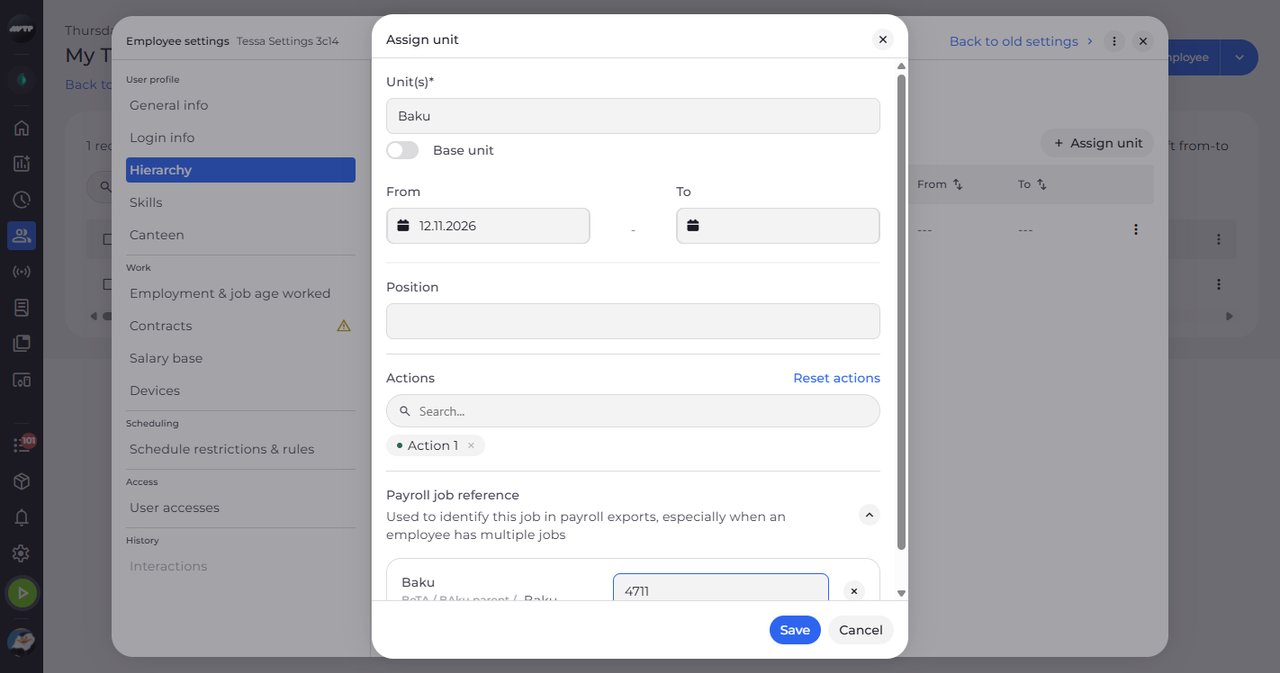
In My Team, click the employee's ⋮ button and choose Edit employee. Then click Hierarchy on the left, click Assign unit and choose the unit. Under Actions, search for an action and click it. Under Payroll job reference, type the reference for the unit.
Tip: Actions offers the actions of the chosen units; Reset actions clears your choice.
Tip: Payroll job reference takes digits only, one per unit. It identifies this job in payroll exports, especially when an employee has several jobs.
-
Step 2: Check the new assignment
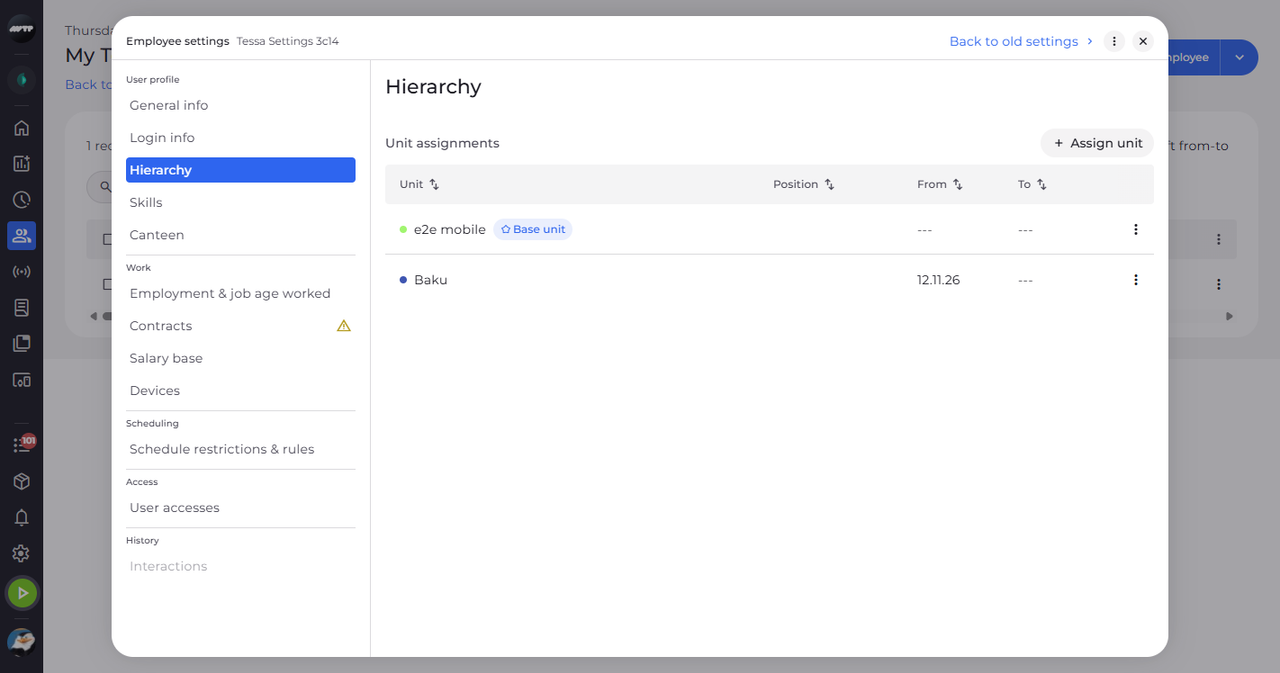
Click Save. The dialog closes and the unit is listed under Unit assignments.
What happens next
The employee is assigned to the unit with the actions and payroll reference you set.
Good to know
- Apply same position to all users units appears when one unit is chosen as Base unit.