


Assign or remove a unit
Assign an employee to another unit, and delete an assignment that no longer applies. The employee's base unit stays.
Before you start
You need:
- Access to My Team (the people icon in the side menu)
- The right to edit employees of your units
- An employee in one of your units
New to the app? Start with Sign in to the web app.
When to use it
When an employee also works in another unit, or stops working there.
Step by step
-
Step 1: Open Hierarchy
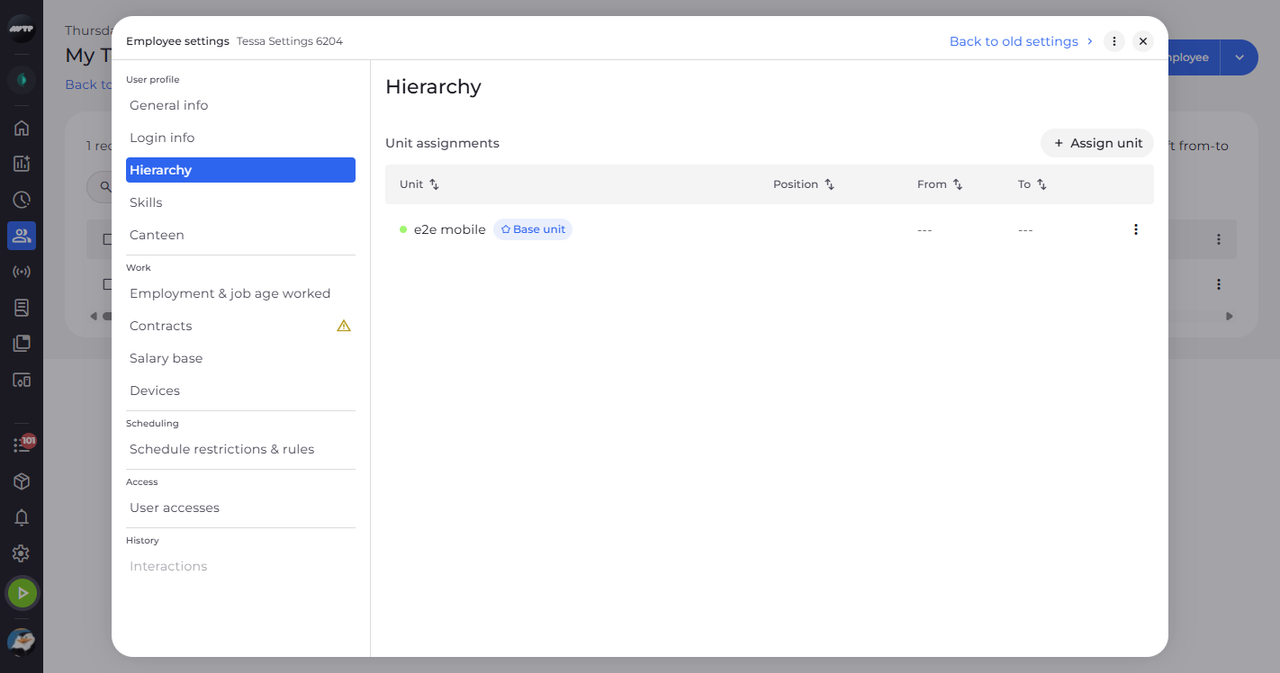
In My Team, click the employee's ⋮ button and choose Edit employee. Then click Hierarchy on the left. Unit assignments lists the employee's units; the base unit carries a Base unit badge.
-
Step 2: Assign a unit
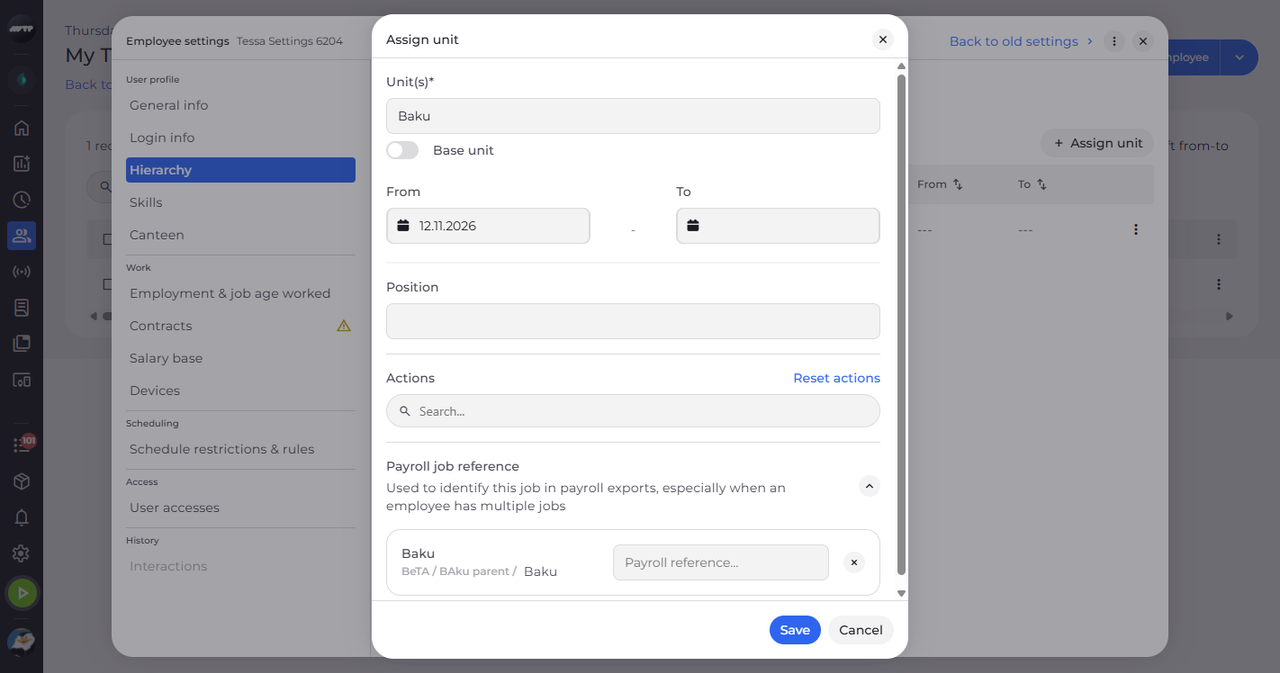
Click Assign unit. Choose the unit under Unit(s), check the From date and fill in the other fields if you need them.
Tip: Ticking a unit ticks everything under it; the employee is assigned to the lowest-level units.
Tip: From is required, To and Position are optional. Payroll job reference takes digits only and identifies this job in payroll exports.
-
Step 3: Check the new unit
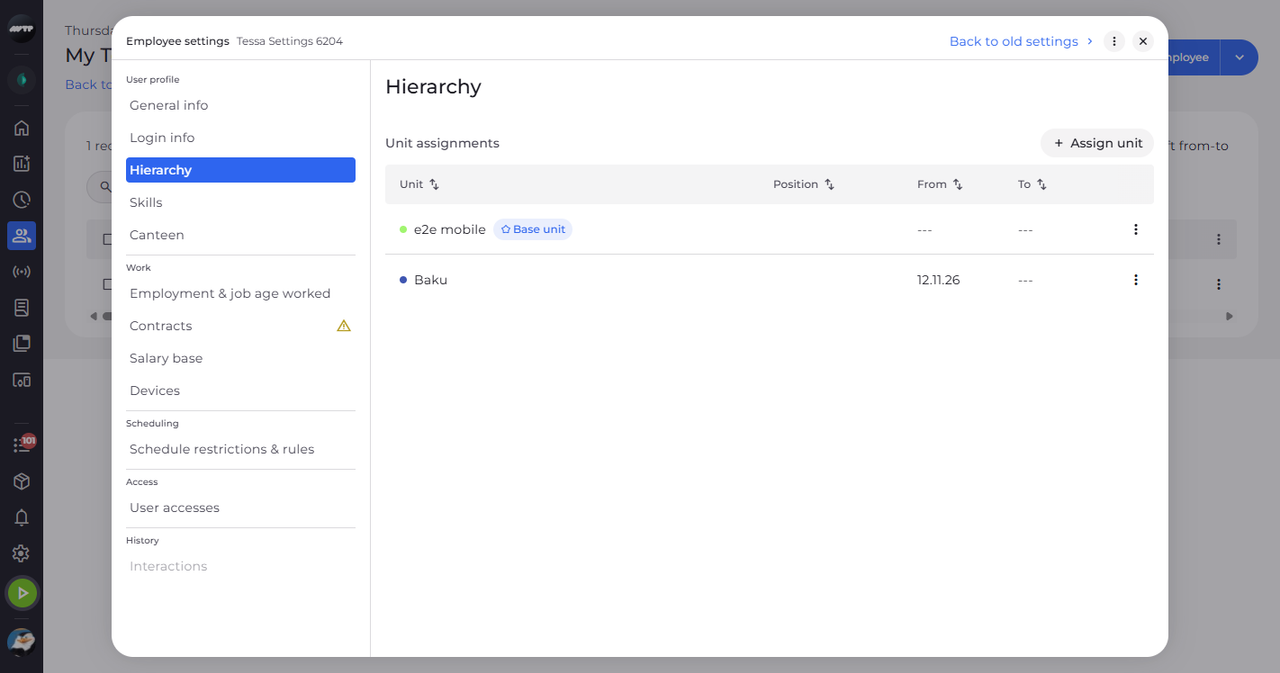
Click Save. The dialog closes and the new unit appears under Unit assignments, below the base unit.
Tip: Unit assignments show no confirmation message: the dialog closes and the list updates.
-
Step 4: Delete a unit assignment
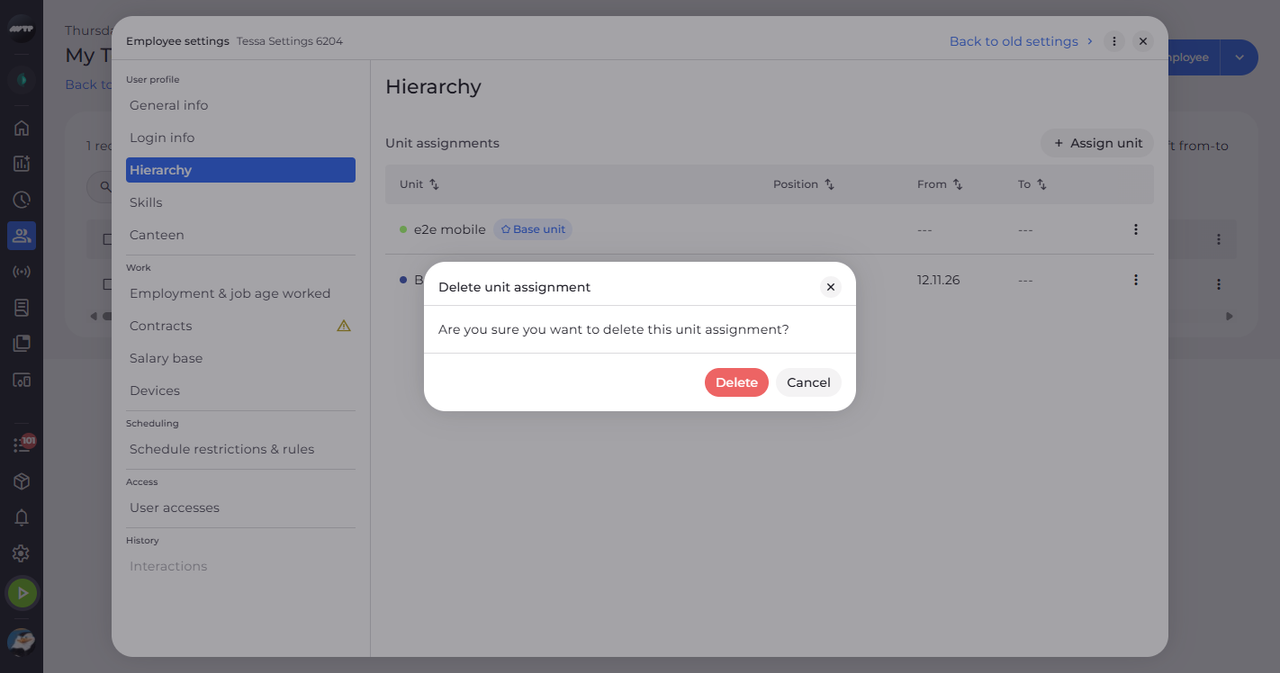
To delete an assignment, click the ⋮ button at the end of its row and choose Delete. Delete unit assignment asks whether you are sure. Click Delete to confirm.
What happens next
The employee's units are up to date. The base unit stays in the list.
Good to know
- The Base unit switch appears only when exactly one unit is chosen.
- Row ⋮ → Set as base unit makes another single-unit assignment the base. Edit and Delete are hidden on assignments you may not change.
- With no assignments, the section shows "No unit assignments yet".
Questions
Can I delete the base unit?
No. The assignment that holds the base unit cannot be deleted - set another unit as base first.
Why is Save greyed out?
Save stays disabled until you choose at least one unit and the dates are valid.