


Add or remove a contract
Add a contract to an employee from a given date, and delete a contract that does not apply.
Before you start
You need:
- Access to My Team (the people icon in the side menu)
- The right to edit employees of your units
- An employee in one of your units
New to the app? Start with Sign in to the web app.
When to use it
When an employee is paid under a new contract, or a contract was added by mistake.
Step by step
-
Step 1: Open Contracts
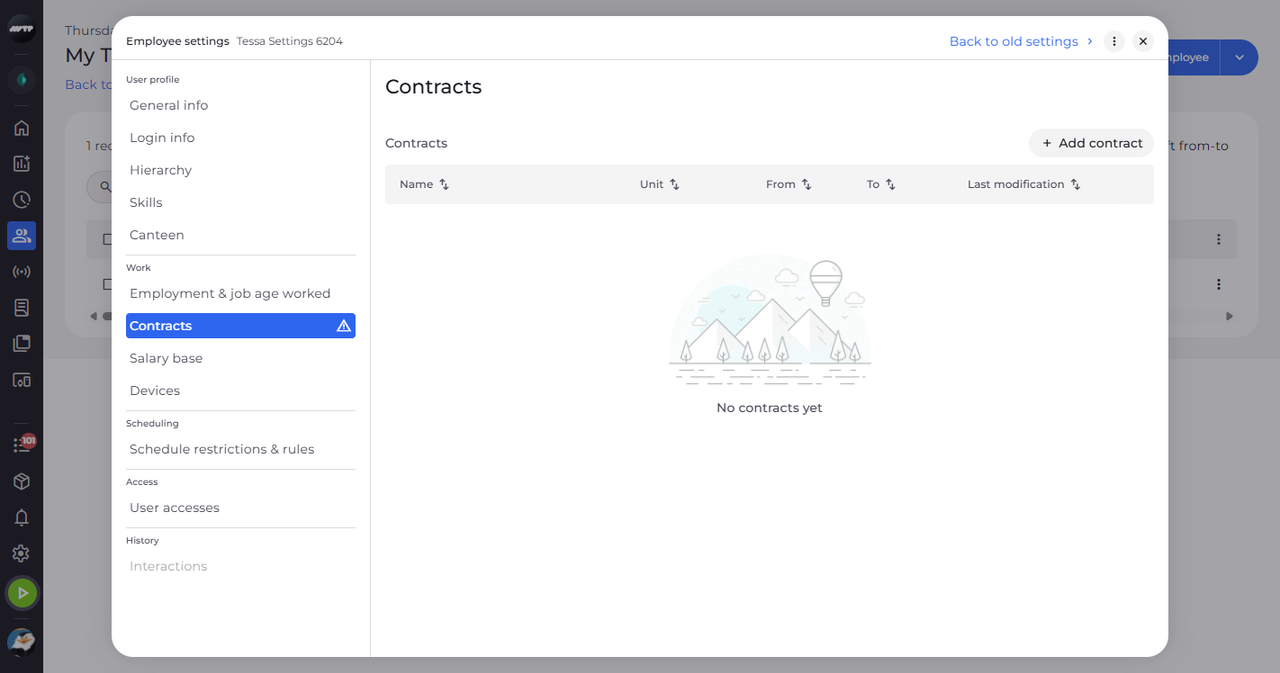
In My Team, click the employee's ⋮ button and choose Edit employee. Then click Contracts on the left. The section lists the employee's contracts with their unit and dates.
-
Step 2: Add a contract
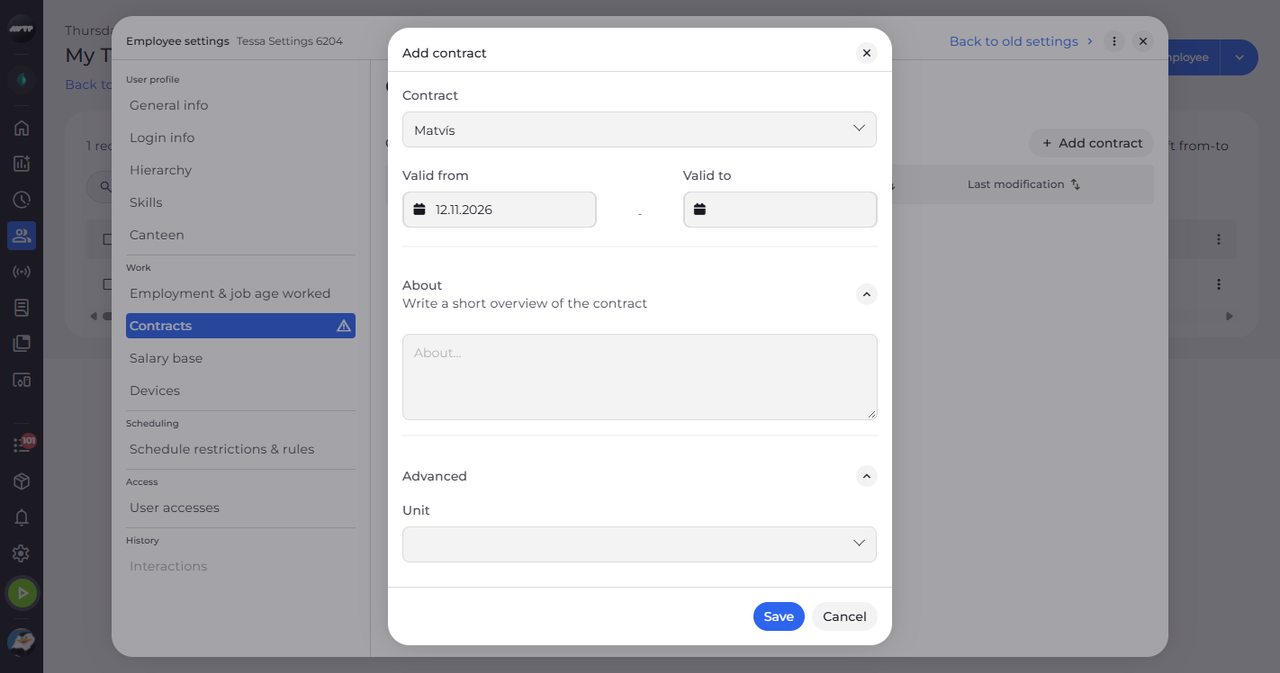
Click Add contract. Choose the contract in the Contract list and check the Valid from date.
Tip: Contract and Valid from are required; Valid to is optional. About takes a short note, and Advanced lets you tie the contract to one Unit.
-
Step 3: Check the saved contract
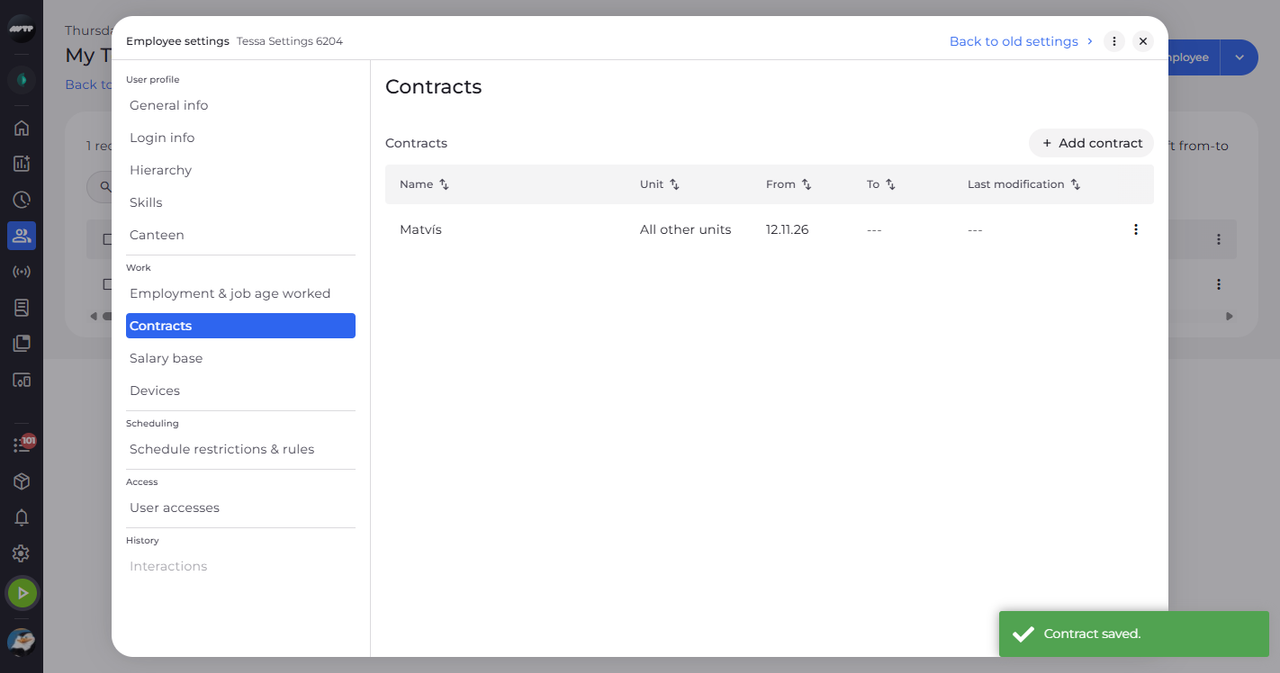
Click Save. The contract appears in the list and a message confirms "Contract saved."
Tip: If the save is refused - for example because of the lock date - the dialog stays open and says why.
-
Step 4: Delete a contract
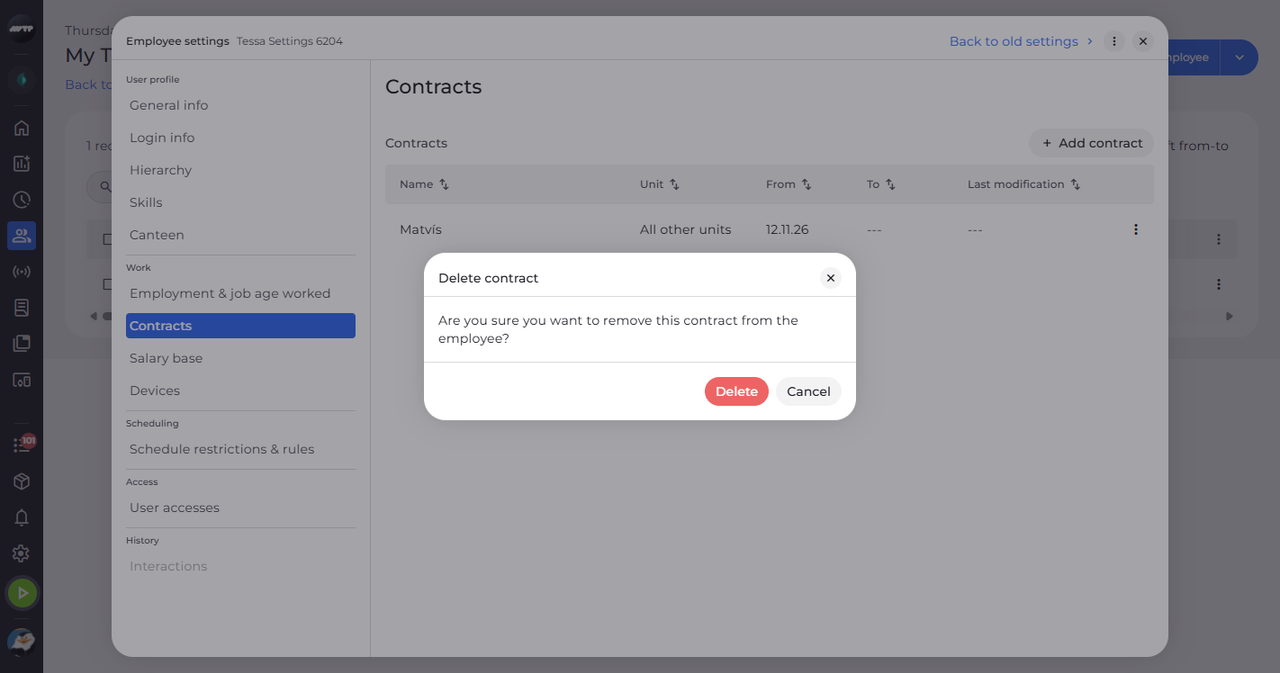
To delete a contract, click the ⋮ button at the end of its row and choose Delete. Delete contract asks whether you want to remove the contract from the employee.
Tip: Confirm with Delete; the settings confirm "Contract deleted."
What happens next
The employee's contracts are up to date. After Delete, a message confirms "Contract deleted." and the contract is gone from the list.
Good to know
- The Unit list offers only the employee's own units and the units above them. Leave it empty and the contract applies to "All other units".
- Row ⋮ → Edit opens Edit contract, where you can change every field.
- A contract for the employee's unit can clear the warning icon next to Contracts.
- With no contracts, the section shows "No contracts yet".
Questions
Why is Save greyed out?
Save stays disabled until Contract and Valid from are filled. A Valid to before Valid from shows "The end date cannot be before the start date."