


Set a weekend rule from a date
Give an employee every second weekend free, counted from a date you choose.
Before you start
You need:
- Access to My Team (the people icon in the side menu)
- The right to edit employees of your units
- An employee in one of your units
New to the app? Start with Sign in to the web app.
When to use it
When an employee's free weekends follow a fixed rhythm from a known date.
Step by step
-
Step 1: Choose the rule and its Active from date
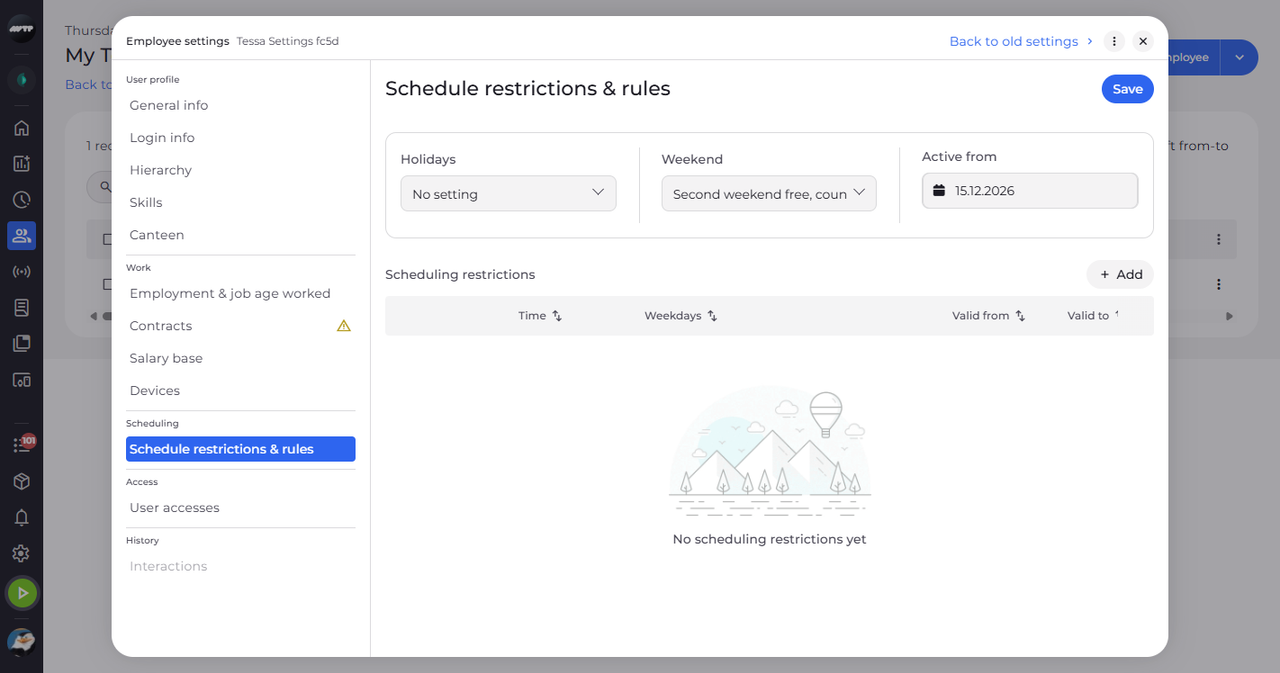
In My Team, click the employee's ⋮ button and choose Edit employee. Then click Schedule restrictions & rules on the left. In Weekend, choose "Second weekend free, counted from a date", pick the date in Active from and click Save at the top right.
Tip: Active from appears only for this rule, and Save stays disabled until it is set.
-
Step 2: Check the saved date
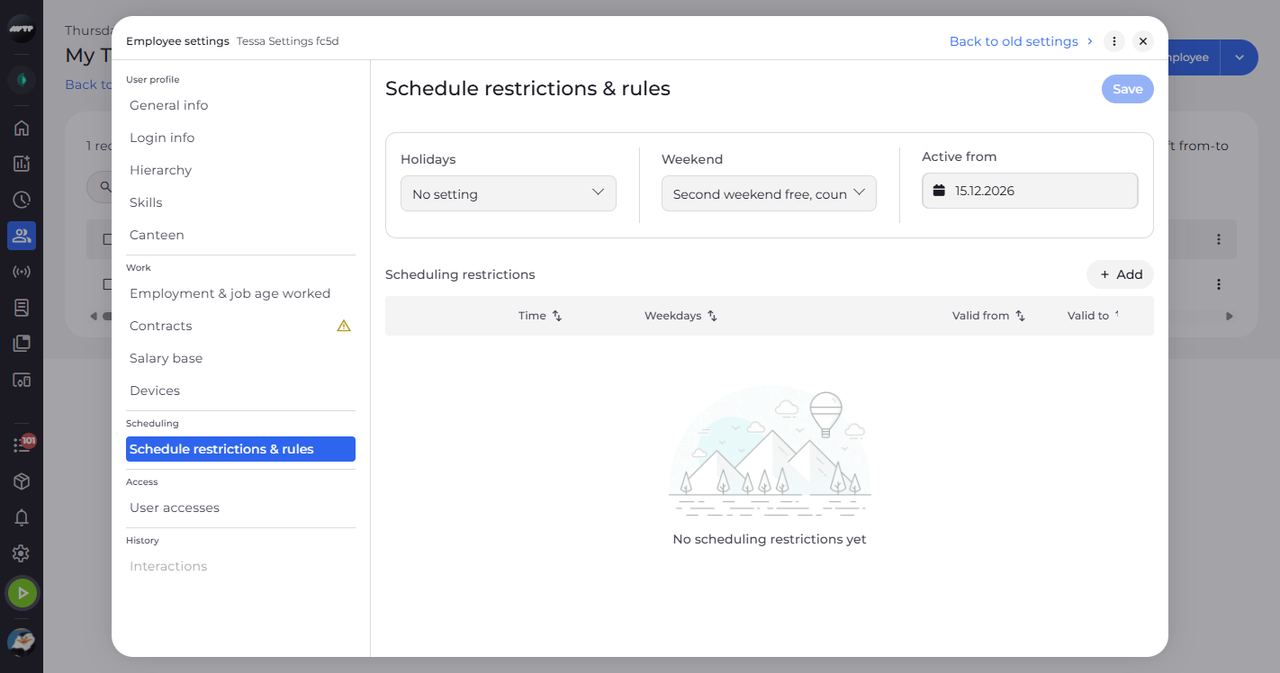
When you open the section again, Weekend and Active from show what you saved.
What happens next
The weekend rule counts from the date you set.
Good to know
- Switching to another weekend rule drops the date.