


Open the candidate board
Open a job ad to see everyone who applied for it, with each candidate sorted into a column for their stage in the process.
Before you start
You need:
- Access to the Careers app
- A job ad with applications
New to the app? Start with Sign in to the web app.
When to use it
When you want to see who applied for a position and where each candidate is in the process.
Step by step
-
Step 1: Find the job ad on the list
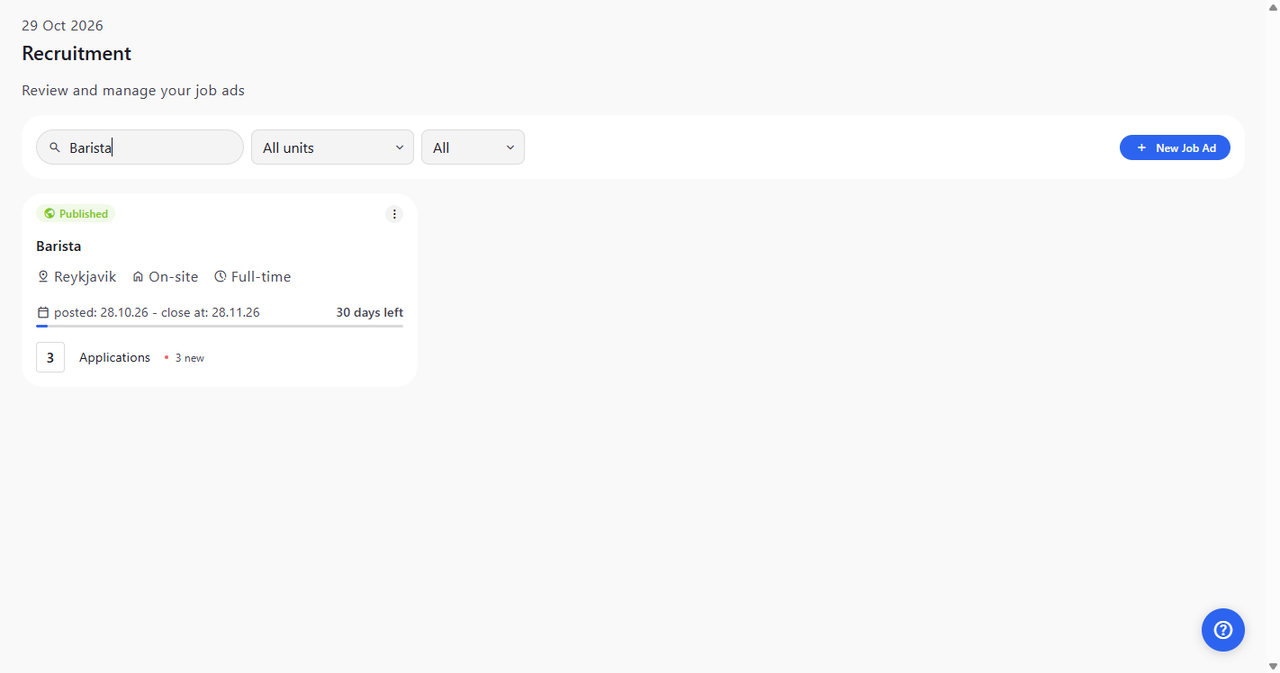
The Recruitment page lists your job ads as cards. Find the job ad you want - its card shows the location, the dates and, at the bottom, the number of Applications. Click Applications to open the candidates.
Tip: The new count next to Applications shows how many applications arrived in the last 24 hours.
Tip: Once someone is hired for the job ad, its card shows Hired and the person's name instead of the number of applications.
Tip: The search box filters the list by job title. Use All units and the status list (All, Draft, Published, Closed) to narrow it further.
-
Step 2: See every candidate by stage
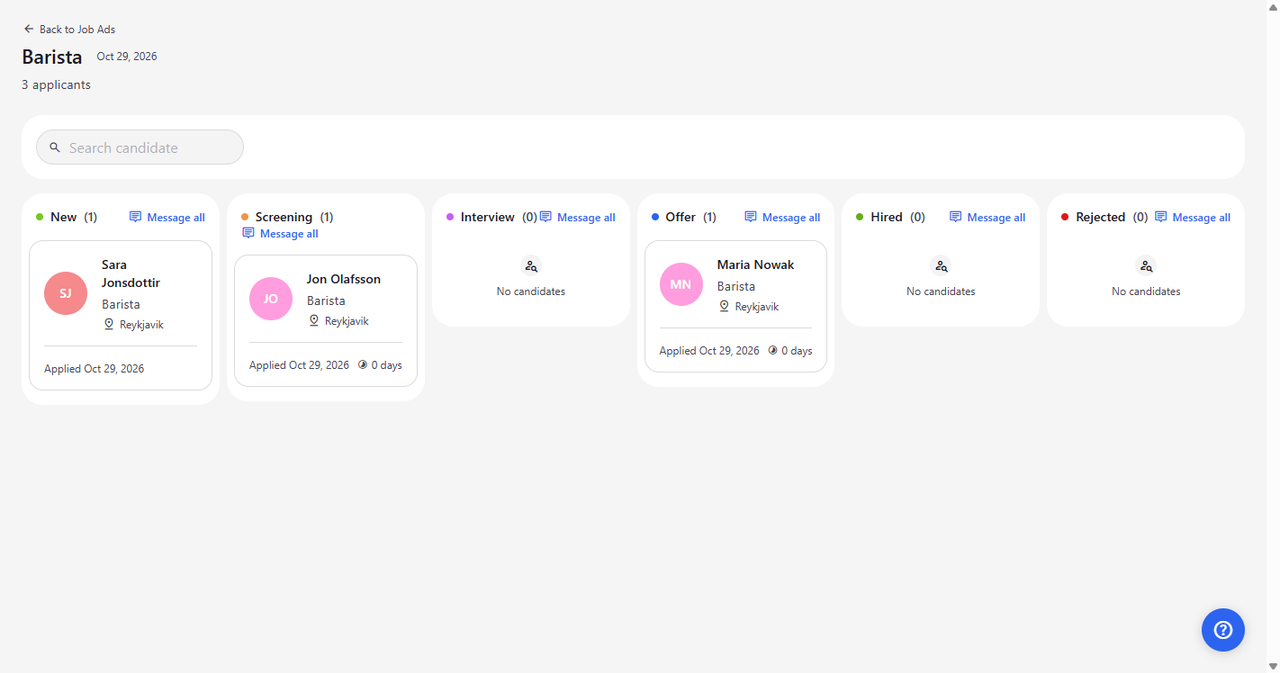
The candidate board opens with the job title and the number of applicants at the top. Each stage has its own column - New, Screening, Interview, Offer, Hired and Rejected - with the number of candidates next to its name and a card for each candidate.
Tip: Search candidate filters the cards by the candidate's name.
Tip: Click a column's name to collapse it to a narrow strip, and click it again to expand it. Your browser remembers this for each column.
Tip: The number of days on a card is how long the candidate has been in that column. Cards in New show only the application date.
What happens next
You can see every candidate of the job ad and which stage each of them is in. Click a candidate card to open their details, or click Back to Job Ads to return to the list.
Good to know
- A column without candidates shows "No candidates".
- Back to Job Ads at the top left takes you back to the job ad list.
- If the board says "Could not load applications", go back to the job ads and open the card again.
- The first time you open the Careers app, a Quick tour walks you through it. The round ? button at the bottom right opens it again.
Questions
The job ad list never finishes loading. Why?
The Careers app uses your MyTimePlan sign-in. If your account has no access to Careers, the list stays at "..." and no job ads appear. Ask your administrator for access to Careers.