


Publish a draft job ad
Publish a job ad you saved as a draft, straight from the menu on its card.
Before you start
You need:
- Access to the Careers app
- A job ad saved as a draft
New to the app? Start with Sign in to the web app.
When to use it
When a draft is ready and candidates should be able to see it.
Step by step
-
Step 1: Open the card menu of a draft
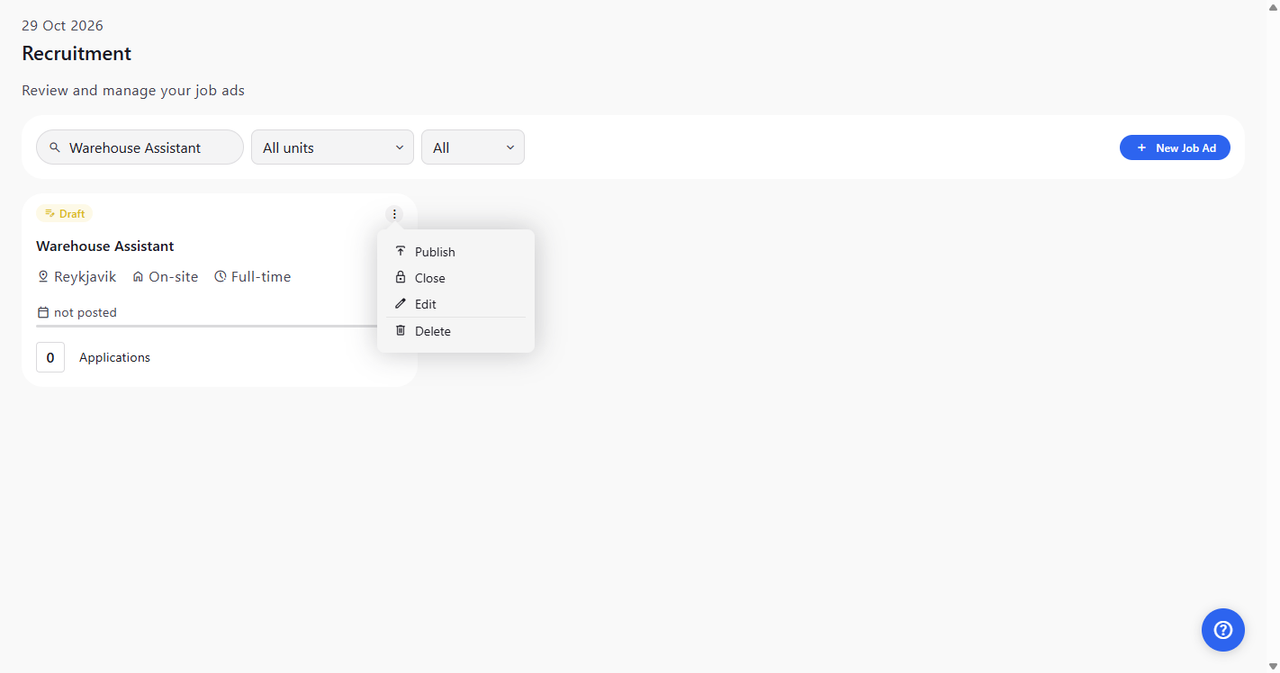
On the Recruitment page, find the job ad marked Draft. Click the three dots at the top right of its card. A menu opens with Publish, Close, Edit and Delete. Click Publish.
Tip: A draft's card says not posted instead of dates until you publish it.
Tip: Edit and Close are offered only on drafts. A published card offers only Unpublish and Delete.
Tip: Delete removes the job ad straight away, without asking for confirmation.
-
Step 2: The draft is published
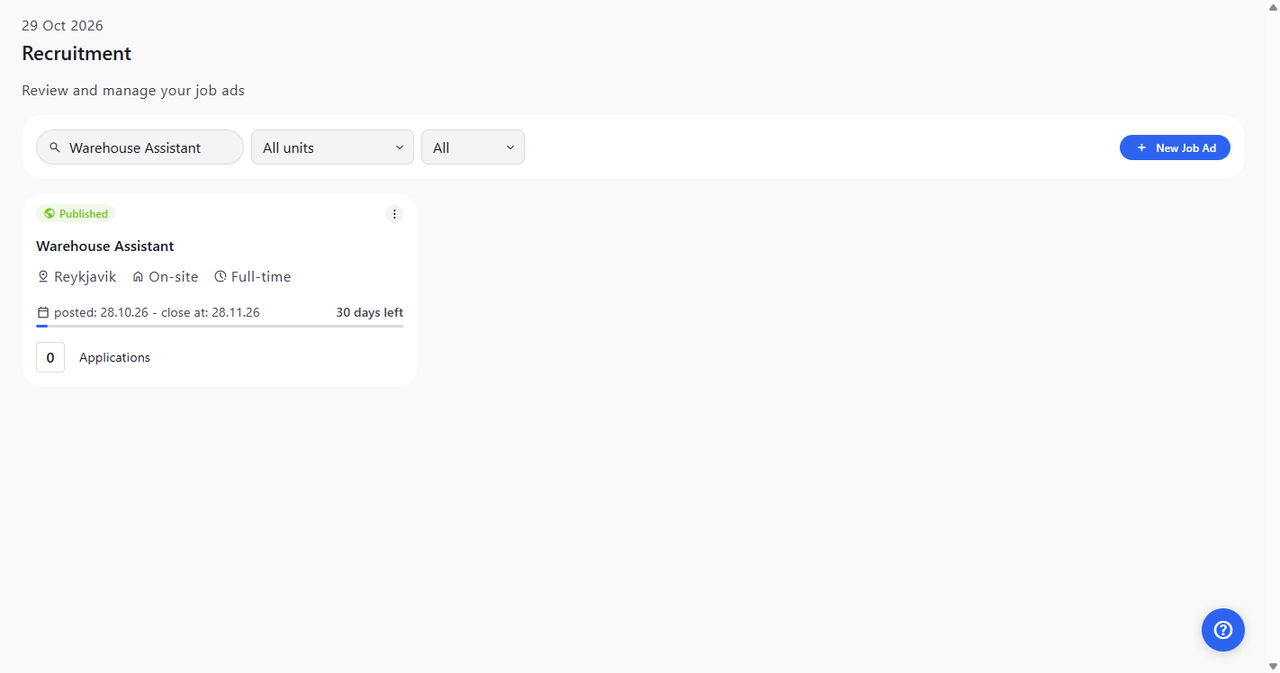
The card now says Published instead of Draft, and shows the posting and closing dates and how many days left the job ad has.
Tip: To take a published job ad offline again, choose Unpublish in its menu.
What happens next
The job ad is published and candidates can apply for it.
Good to know
- To see only your drafts, choose Draft in the status list next to All units.
Questions
I clicked Publish and "Something went wrong" appeared. What now?
The job ad was not published and stays a Draft. Read the message, open the draft with Edit, check that every required field is filled and try Publish again.