


Create and publish a job ad
Create a new job ad, fill in its required fields and publish it in one go, so candidates can see it and apply.
Before you start
You need:
- Access to the Careers app
- A unit the position belongs to
New to the app? Start with Sign in to the web app.
When to use it
When you are hiring for a new position and want candidates to see the job ad.
Step by step
-
Step 1: Open the creator with New Job Ad
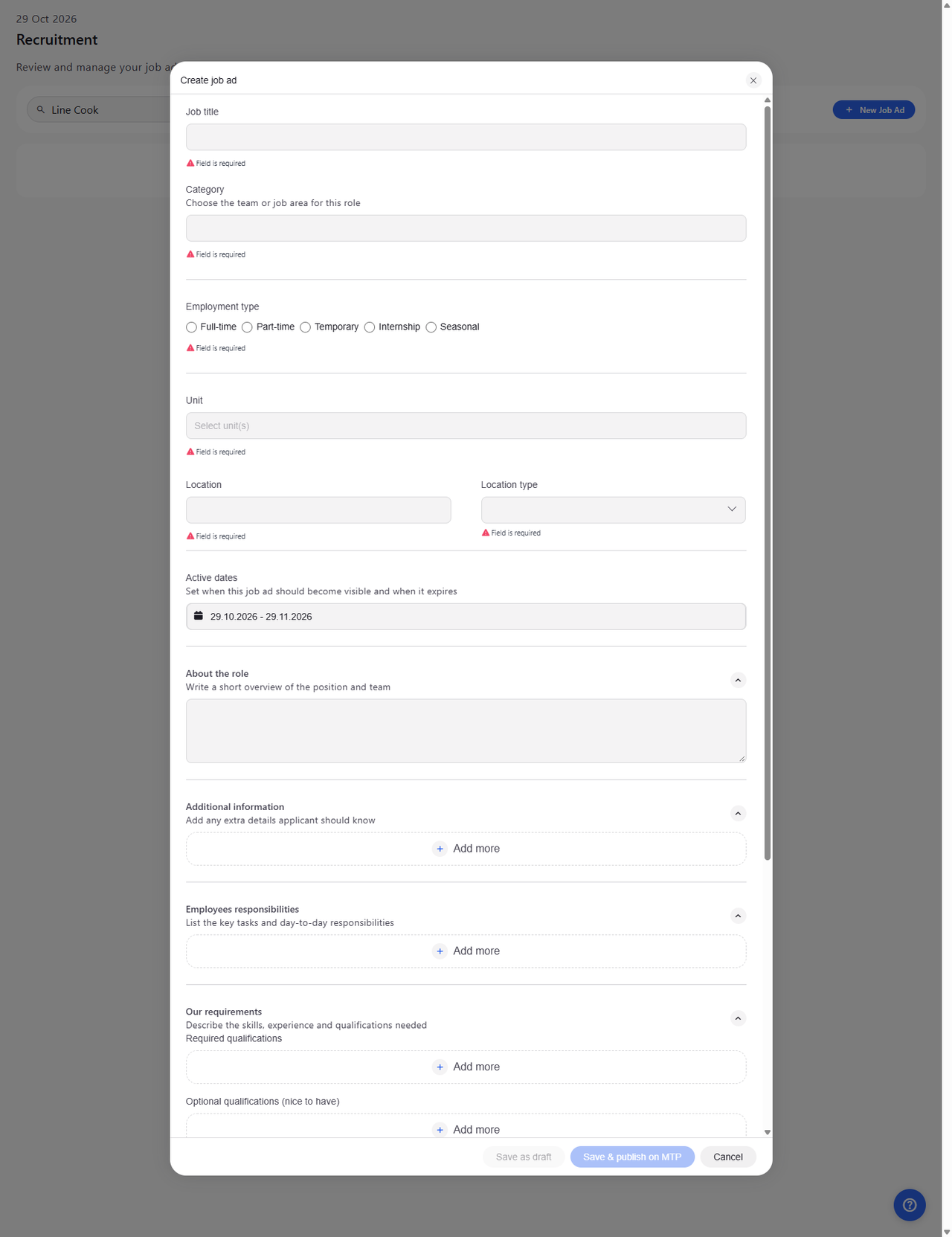
On the Recruitment page, click New Job Ad at the top right. The Create job ad form opens. Every field that must be filled before you can publish says "Field is required" under it.
Tip: Save as draft needs only the Job title. Save & publish on MTP stays greyed out until every required field is filled.
Tip: If Unit says "No org units available", there is no unit to choose, so the job ad cannot be published. Ask your administrator.
-
Step 2: Fill in the required fields
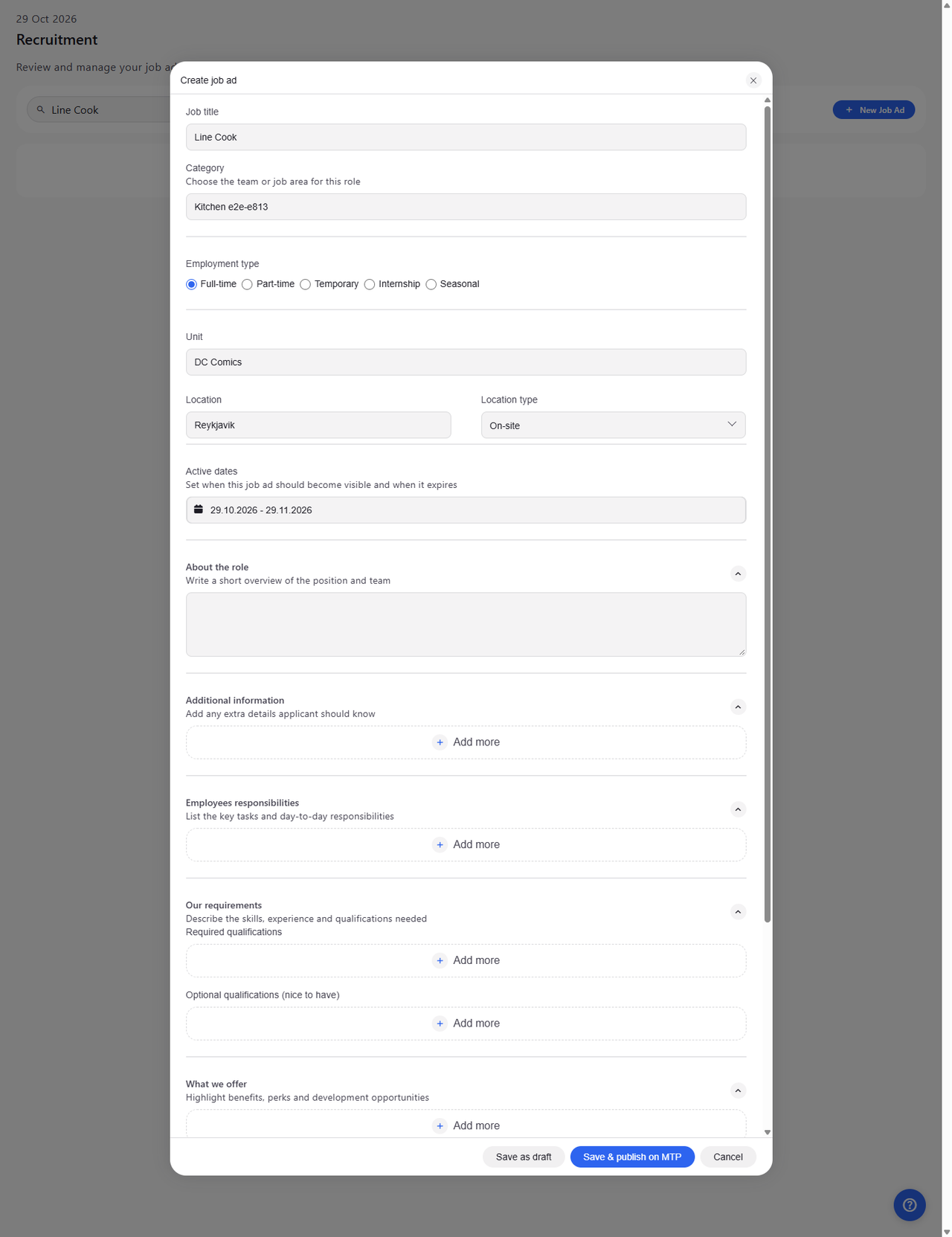
Type the Job title, choose a Category, an Employment type and a Unit, type the Location and choose a Location type. Active dates are filled in for you; change them if the job ad should be visible for a different period. About the role and the sections below it are optional.
Tip: About the role takes up to 5000 characters, and each responsibility, requirement or benefit up to 1000.
Tip: Application form fields lists the employee profile fields candidates fill in when they apply. All are ticked at first; fields that MyTimePlan requires stay ticked.
-
Step 3: The job ad is published
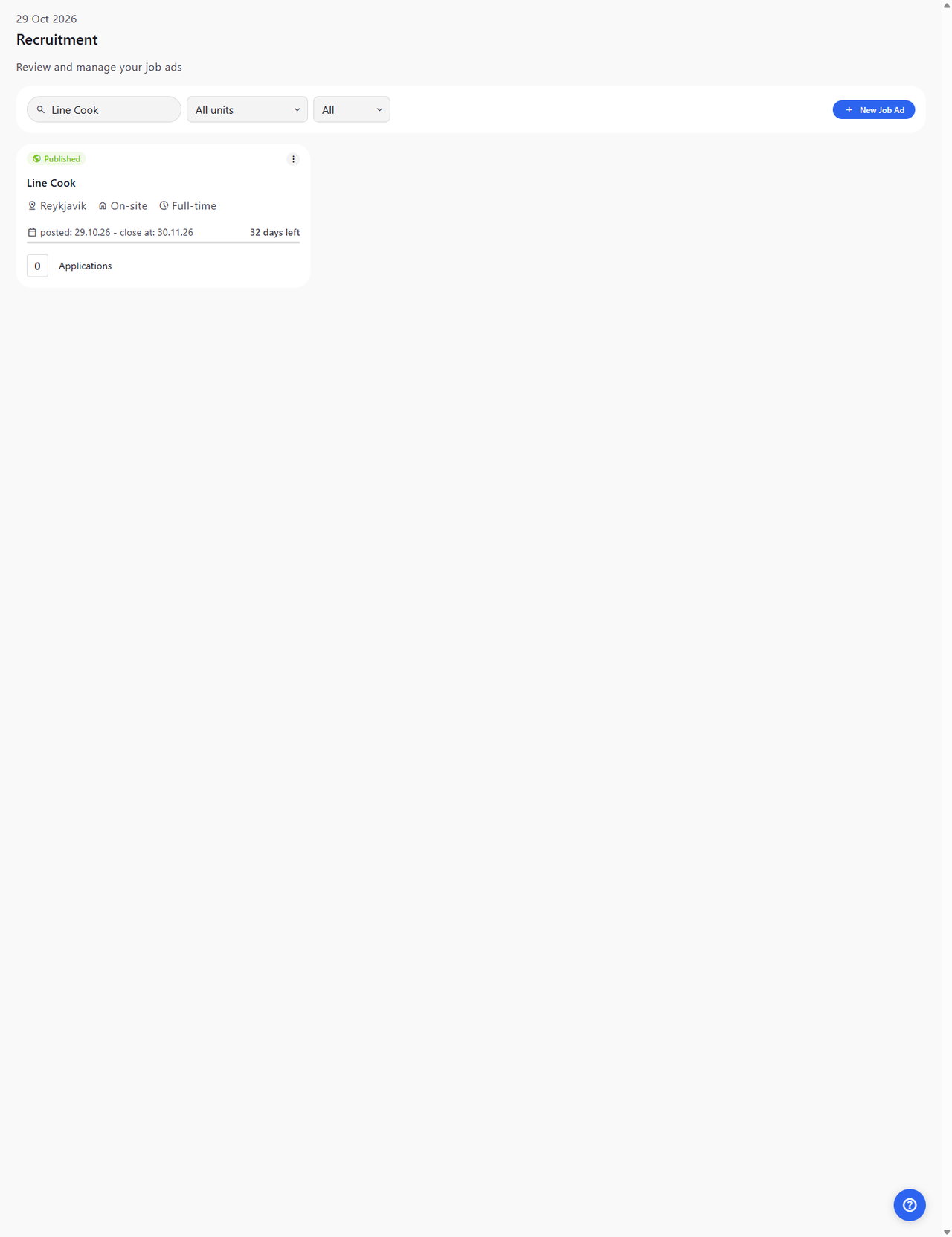
Click Save & publish on MTP. The form closes and the new job ad is on the list, with Published at the top of its card, its posting and closing dates, and no Applications yet.
Tip: Published job ads are listed first, the one closing soonest at the top, then drafts, then closed job ads.
Tip: A published card shows how many days left the job ad has; after its end date it says finished.
What happens next
The job ad is published and candidates can apply for it. New applications appear on its card and on its candidate board.
Good to know
- If you close the creator with unsaved changes, it asks "Discard job ad?". Keep editing returns to the form, Discard throws the changes away.
- A published job ad cannot be edited. Its card menu offers only Unpublish and Delete.
Questions
Why is Save & publish on MTP greyed out?
A required field is still empty. Fill in Job title, Category, Employment type, Unit, Location and Location type - the empty ones say "Field is required".