


Move a candidate to the next stage
Move a candidate on to the next stage of your recruitment process, for example from New to Screening.
Before you start
You need:
- Access to the Careers app
- A job ad with applications
New to the app? Start with Sign in to the web app.
When to use it
When a candidate has passed a step and is ready for the next one.
Step by step
-
Step 1: Choose what happens next
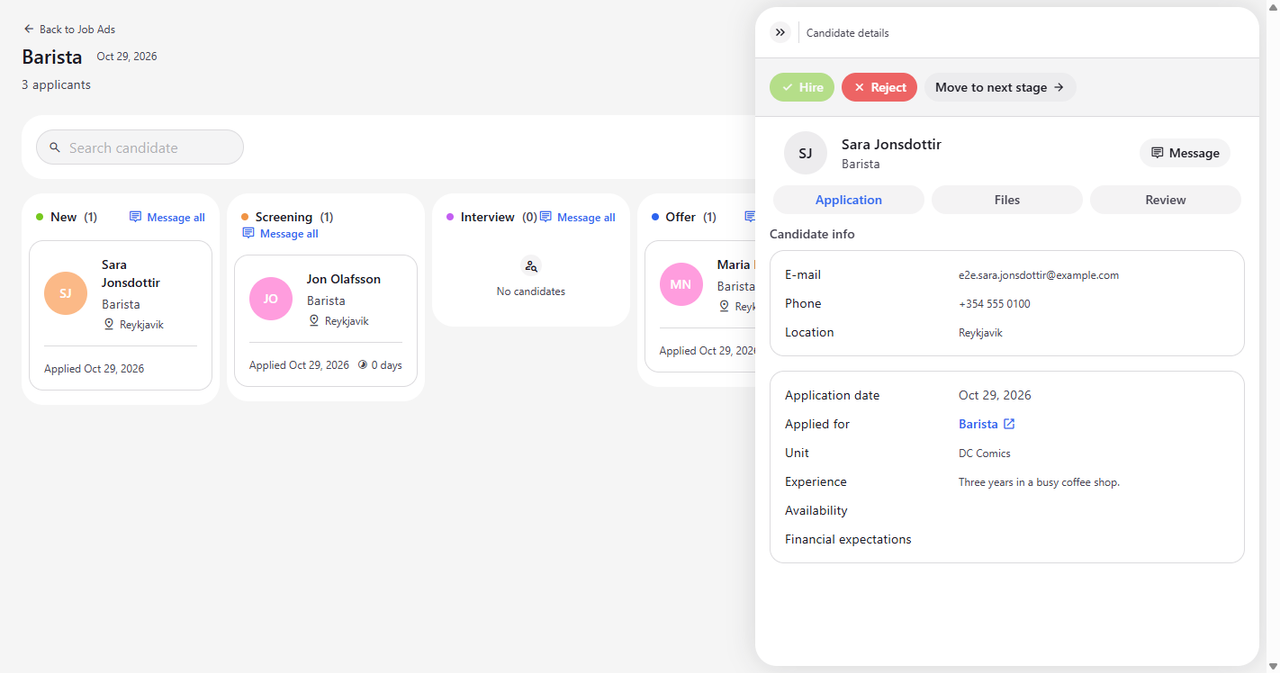
Open the candidate board and click the candidate's card. At the top of Candidate details you see the buttons for this stage: Hire, Reject and Move to next stage. Click Move to next stage.
Tip: Move to next stage is shown for candidates in New, Screening and Interview. At Offer, use Hire instead.
Tip: Reject moves the candidate to Rejected straight away, without asking for confirmation.
-
Step 2: The card moves to the next column
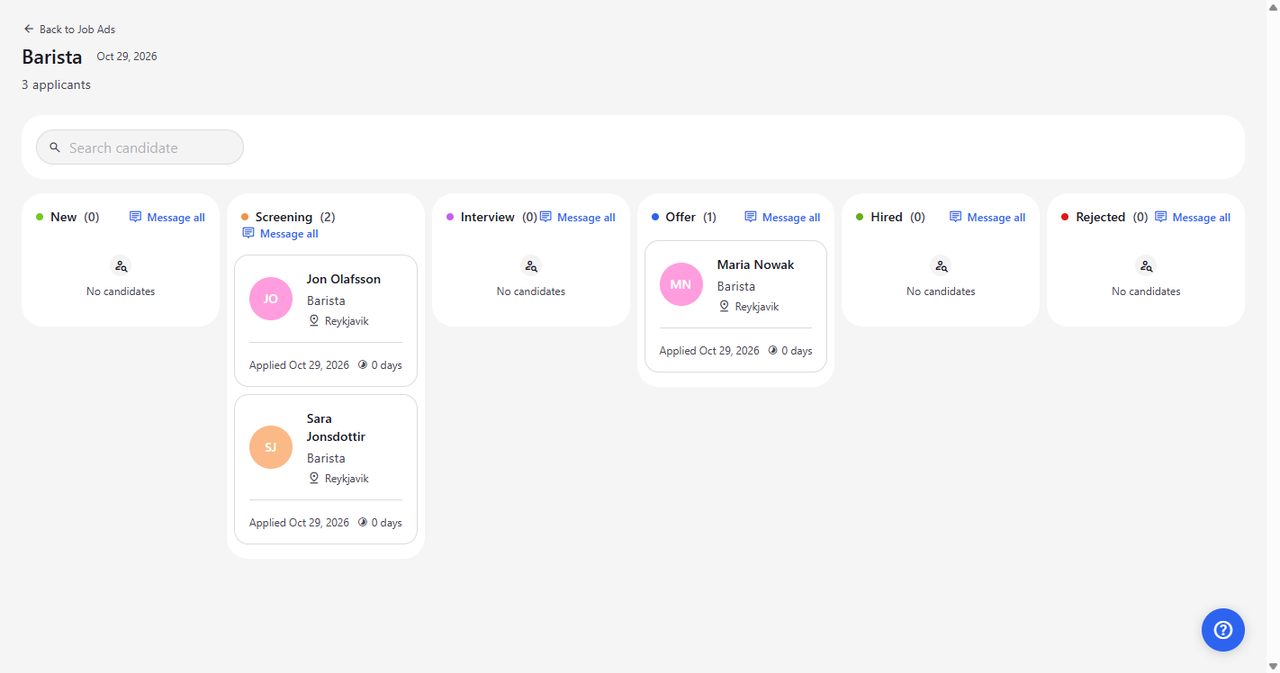
The candidate now counts in the next column - here New shows one candidate fewer and Screening one more - with their card shown below the others.
Tip: After the move, Candidate details closes and the card is in its new column.
Tip: On a computer you can also drag a card to another column. On a narrow screen such as a phone, dragging is off - use the arrow buttons on the card instead.
Tip: If a move is not allowed, the card jumps back to its column and "This action is not allowed in the current state." appears.
What happens next
The candidate is in the next stage of the process, and the board shows their card in the new column.
Good to know
- Message all at the top of a column opens one e-mail to every candidate shown in that column. While you search, only the matching candidates are included.
- Message all puts every address in the same recipient line, so the candidates can see each other's e-mail addresses. Move them to Bcc in your mail program if that matters.
Questions
Can I move a candidate back to an earlier stage?
Yes. On a computer, drag the card back to the earlier column. On a narrow screen, cards in Screening, Interview and Offer have a back arrow.