


Hire a candidate
Hire a candidate who has reached the Offer stage, then add them to MyTimePlan as an employee.
Before you start
You need:
- Access to the Careers app
- A candidate at the Offer stage
New to the app? Start with Sign in to the web app.
When to use it
When a candidate has accepted your offer.
Step by step
-
Step 1: Hire a candidate at the Offer stage
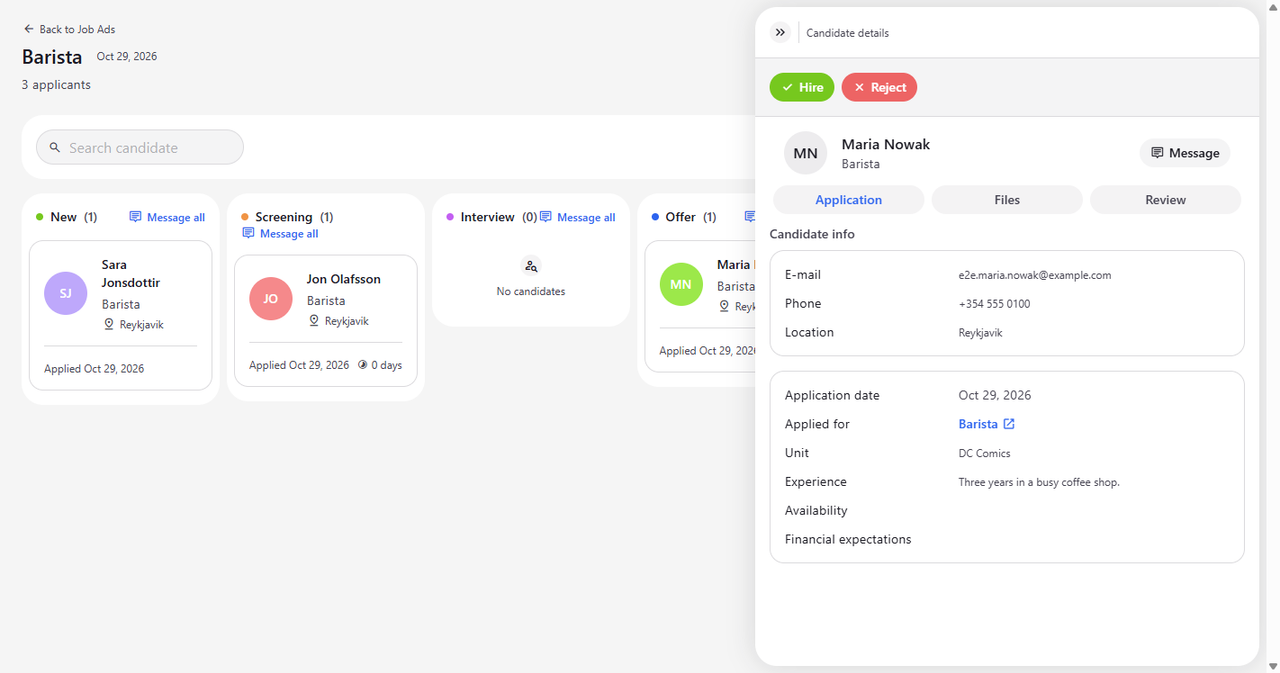
On the candidate board, click the card of a candidate in the Offer column. At the top of Candidate details, click Hire.
Tip: Hire can be clicked only when the candidate is at Offer. In the other stages it is greyed out.
Tip: Hire only moves the candidate to Hired. It does not create an employee in MyTimePlan yet.
-
Step 2: Add the new hire to MyTimePlan
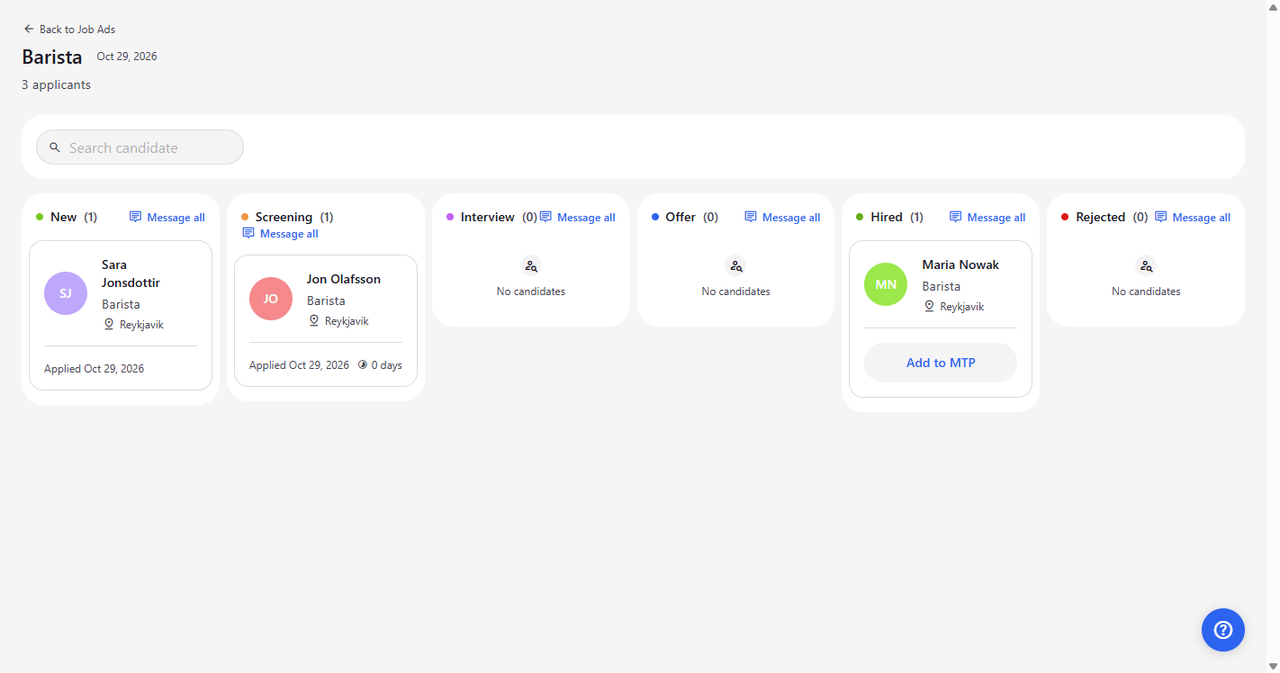
The candidate card moves to the Hired column, and the card now has an Add to MTP button. Click Add to MTP to add the candidate to MyTimePlan as an employee.
Tip: Once the candidate is added to MyTimePlan, the card shows User added instead of Add to MTP.
Tip: A candidate who was added to MyTimePlan cannot be rejected. Reject is greyed out with "You cannot reject a candidate who has been added to MTP", and dragging the card to Rejected does nothing.
-
Step 3: Choose the unit and confirm
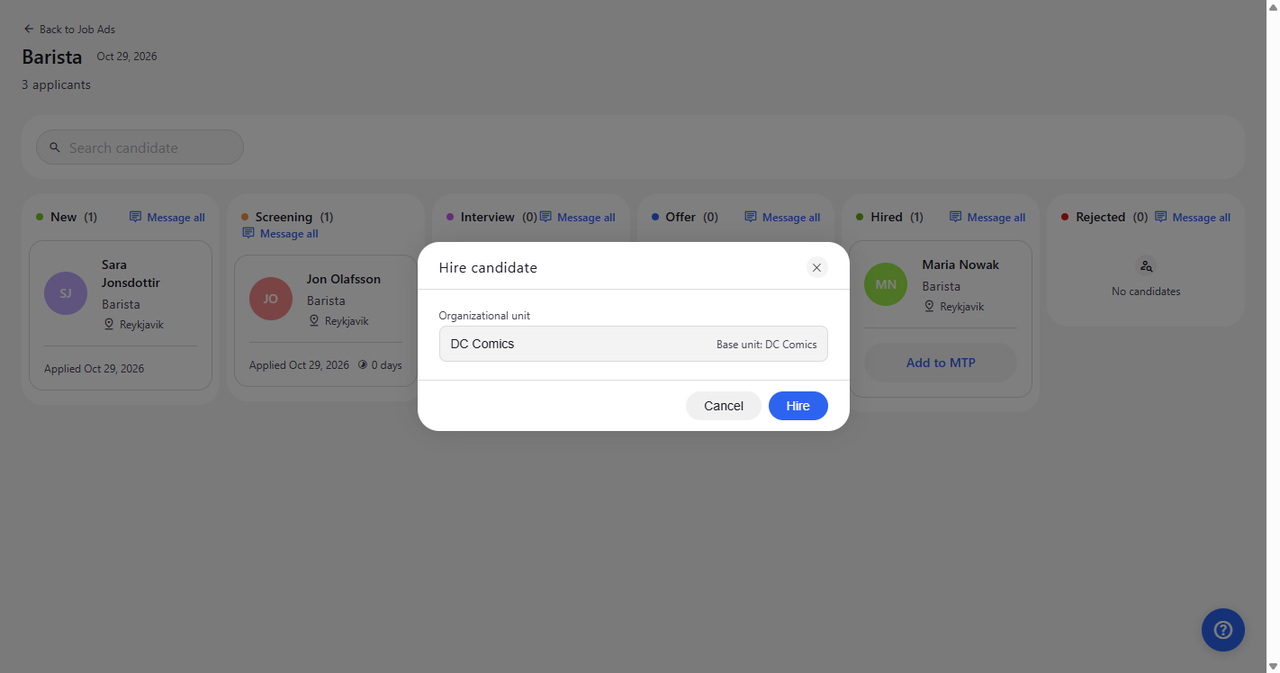
The Hire candidate dialog opens. Under Organizational unit, choose the unit the new employee belongs to; the field also shows which unit is the base unit. Click Hire to add the candidate to MyTimePlan as an employee of the selected unit.
Tip: If the candidate applied for one unit, it is already selected and set as base unit. If they applied for several, nothing is selected - choose the unit yourself.
Tip: You can choose only from the units of this job ad. Hire stays greyed out until at least one unit is selected.
Tip: Use Set as base unit to choose the employee's base unit. Without it, the first selected unit becomes the base unit.
Tip: Hire creates a real employee in MyTimePlan and cannot be undone. Cancel closes the dialog without creating anything.
What happens next
The candidate is in the Hired column. When you click Hire in the dialog, they are also added to MyTimePlan as an employee of the unit you chose.
Good to know
- If the candidate's application has no SSN, Add to MTP shows "Missing required information" instead of the hire form. Get the SSN from the candidate before you add them to MyTimePlan.
Questions
Hire says "This SSN already belongs to an employee." What now?
Someone with this SSN is already an employee in MyTimePlan. Check the existing employee instead of adding the candidate again.
Hire says "This candidate has already been hired." Why?
The candidate was already added to MyTimePlan. Close the dialog - nothing more needs to be done.
Hire says "The selected units aren't valid for this hire". What does that mean?
Choose units from the job ad's own units, and make sure the base unit is one of the units you selected.
Hire says "Could not sync the new employee to MyTimePlan. Please try again."
The connection to MyTimePlan failed for a moment. Click Hire again.
Hire says "Hiring is unavailable on this deployment."
Adding candidates to MyTimePlan is not switched on for your company. Ask your administrator.