


Edit an employee
Open an employee's settings from My Team to change their data, employment or access.
Before you start
You need:
- Access to My Team (the people icon in the side menu)
- The right to edit employees
New to the app? Start with Sign in to the web app.
When to use it
When you need to change an employee's personal data, employment or access.
Step by step
-
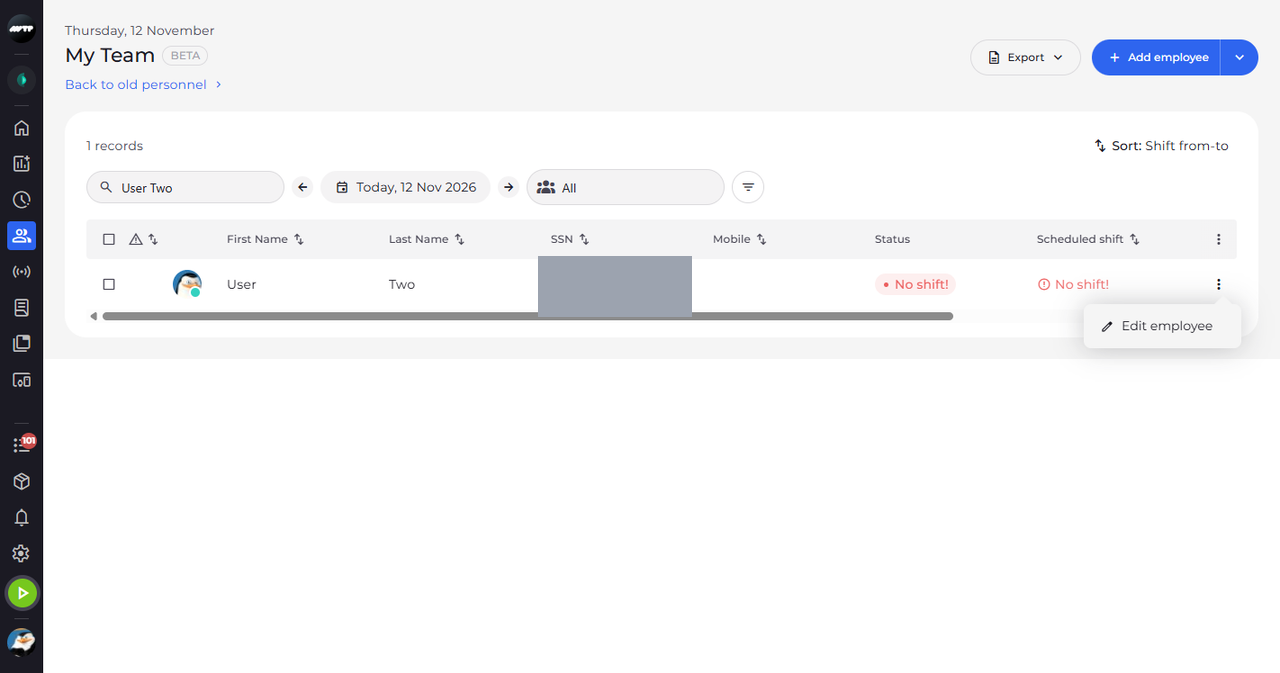
Step 1: Open the employee's ⋮ menu
Open My Team, find the employee and click the ⋮ button at the end of their row. A menu with Edit employee opens.
-
Step 2: Edit the employee in Employee settings
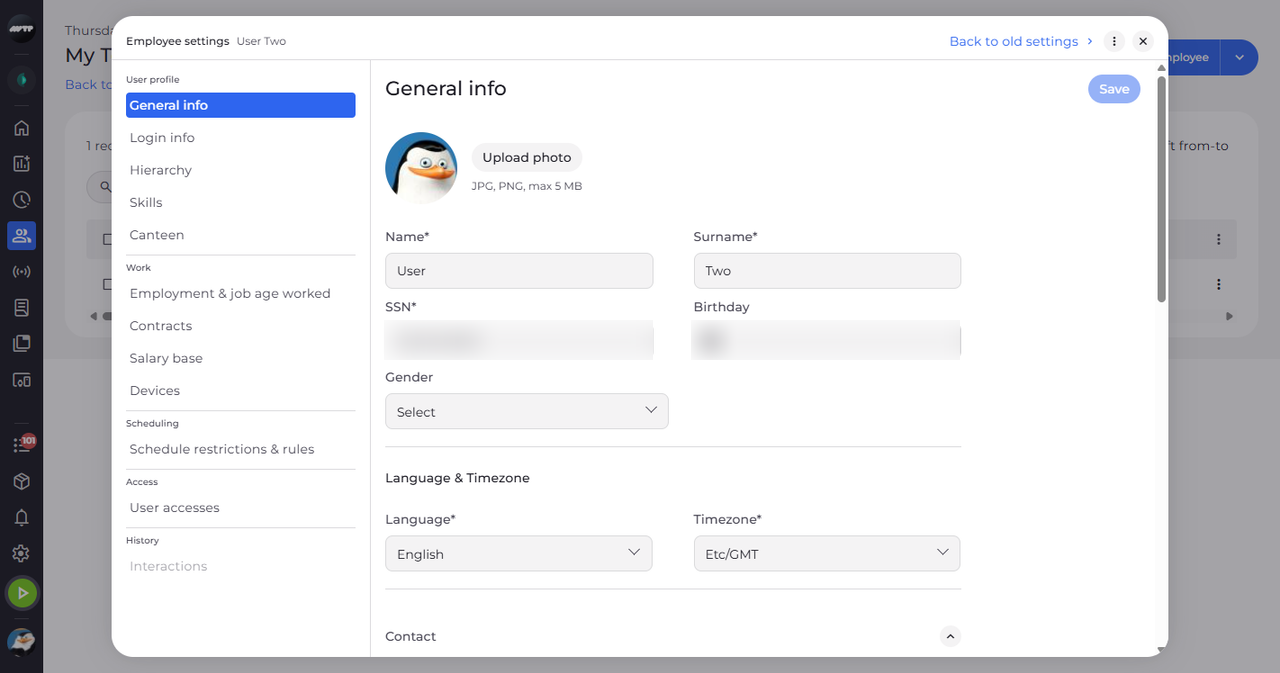
Click Edit employee. Employee settings opens over My Team with the employee's name next to the title. Choose a section on the left - General info opens first - change what you need and click Save.
Tip: The menu on the left has five groups - User profile, Work, Scheduling, Access and History. You only see the sections your access lets you see.
Tip: Save saves only the section that is open.
What happens next
The employee's settings are open and you can change them section by section. Click X at the top right to return to My Team.
Good to know
- Back to old settings, at the top right, opens the classic employee editor of the same employee in a new browser tab.
- If you close the settings with unsaved changes, they ask whether you are sure - choose Keep editing to go back or Close without saving.
- The row menu shows Delete employee only when you may delete this employee and nothing linked to them prevents it.
Questions
Why can't I change anything in a section?
You can see the section but not edit it - the fields are read-only and Save stays disabled with "You do not have access to edit this section". Ask your administrator for the right.